

Manage datasets
The Datasets page lists every Brightspace Data Set your institution can sync, and which ones Rowseta includes in each sync.
If you don’t see this menu or button, your role doesn’t include it. Ask someone who can edit roles (Owners and Admins by default).
Open Data > Datasets.
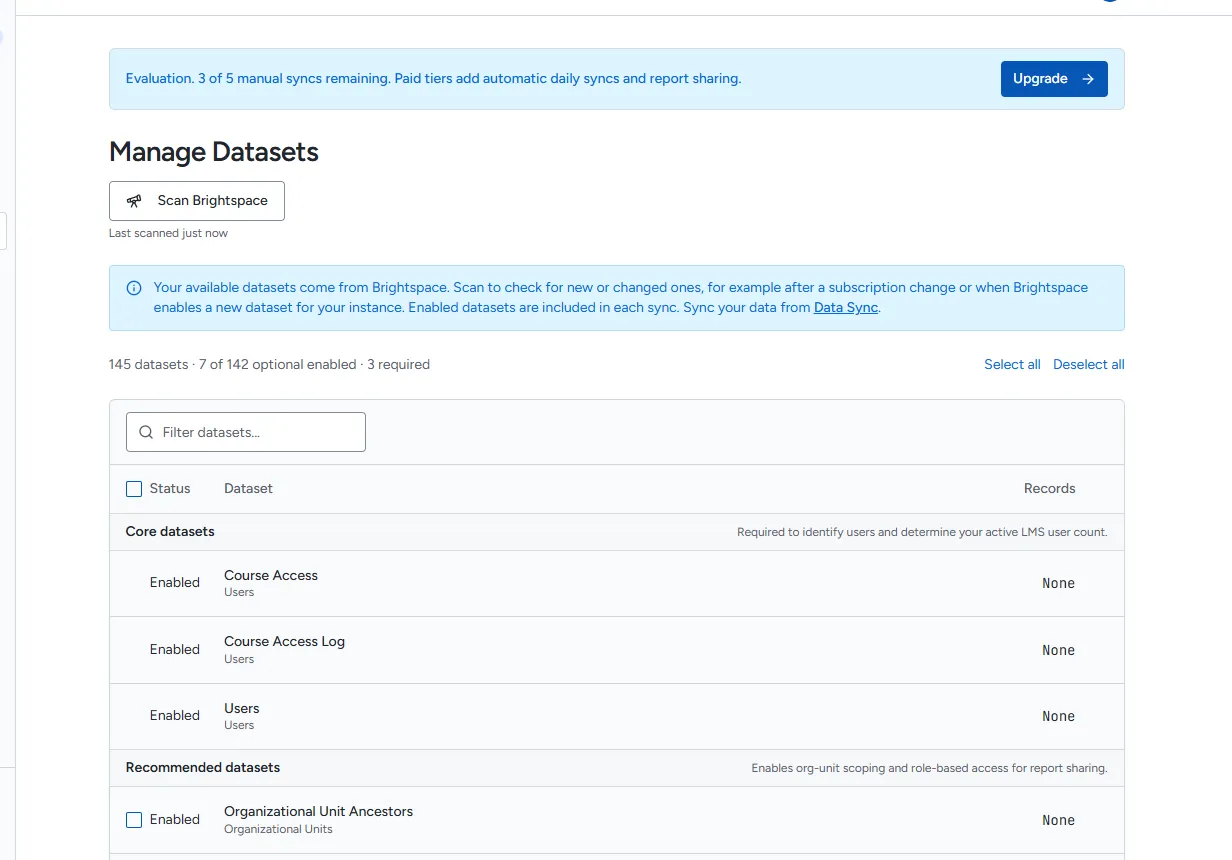
The dataset groups
Section titled “The dataset groups”| Group | Datasets | Can you turn them off? |
|---|---|---|
| Core datasets | Users, Course Access, Course Access Log | No. They are always synced. |
| Recommended datasets | Role Details, User Enrollments, Organizational Units, Organizational Unit Parents, Organizational Unit Ancestors, Organizational Unit Descendants | Yes, but course scoping and org unit filters stop working. |
| Optional datasets | Everything else, by category | Yes |
Each row shows whether the dataset is Enabled or Not enabled, and how many records Rowseta holds. See the Dataset guide for what the main datasets contain.
Scan Brightspace for new datasets
Section titled “Scan Brightspace for new datasets”Brightspace adds datasets over time, and your subscription can change. To check:
- Select Scan Brightspace. It usually takes under a minute; you can leave the page.
- When it finishes, Rowseta reports how many datasets are new or newly available.
If your last scan was more than 30 days ago, the page reminds you.
Enable or disable datasets
Section titled “Enable or disable datasets”- Tick the datasets you want to change, or use Select all and Deselect all. Filter datasets… narrows the list.
- Select Enable selected or Disable selected.
Enabled datasets are included in the next sync. Disabling a dataset keeps its existing data but stops updating it.
While a sync is running, dataset changes are disabled: A sync is in progress. Dataset changes are disabled until it completes.
Delete a dataset’s data
Section titled “Delete a dataset’s data”- Open the dataset’s actions menu and select Delete data.
- Confirm with Delete data.
This permanently deletes the synced data and sync history for that dataset. If it is still enabled, it is imported again on the next sync. You cannot delete data during a sync.
To delete every dataset’s data at once, use Delete all data on Data > Sync.