

Invite people
Invite people who need to use Rowseta directly, such as colleagues or external reviewers. For Brightspace launch access, see Brightspace launch members.
If you don’t see this menu or button, your role doesn’t include it. Ask someone who can edit roles (Owners and Admins by default).
Invite one person
Section titled “Invite one person”- Open Settings > People and select Invite person.
- Keep Single selected.
- Enter the person’s Email.
- Choose a Role. The box below shows what the role grants.
- When the page says Ready to send, select Send invitation.
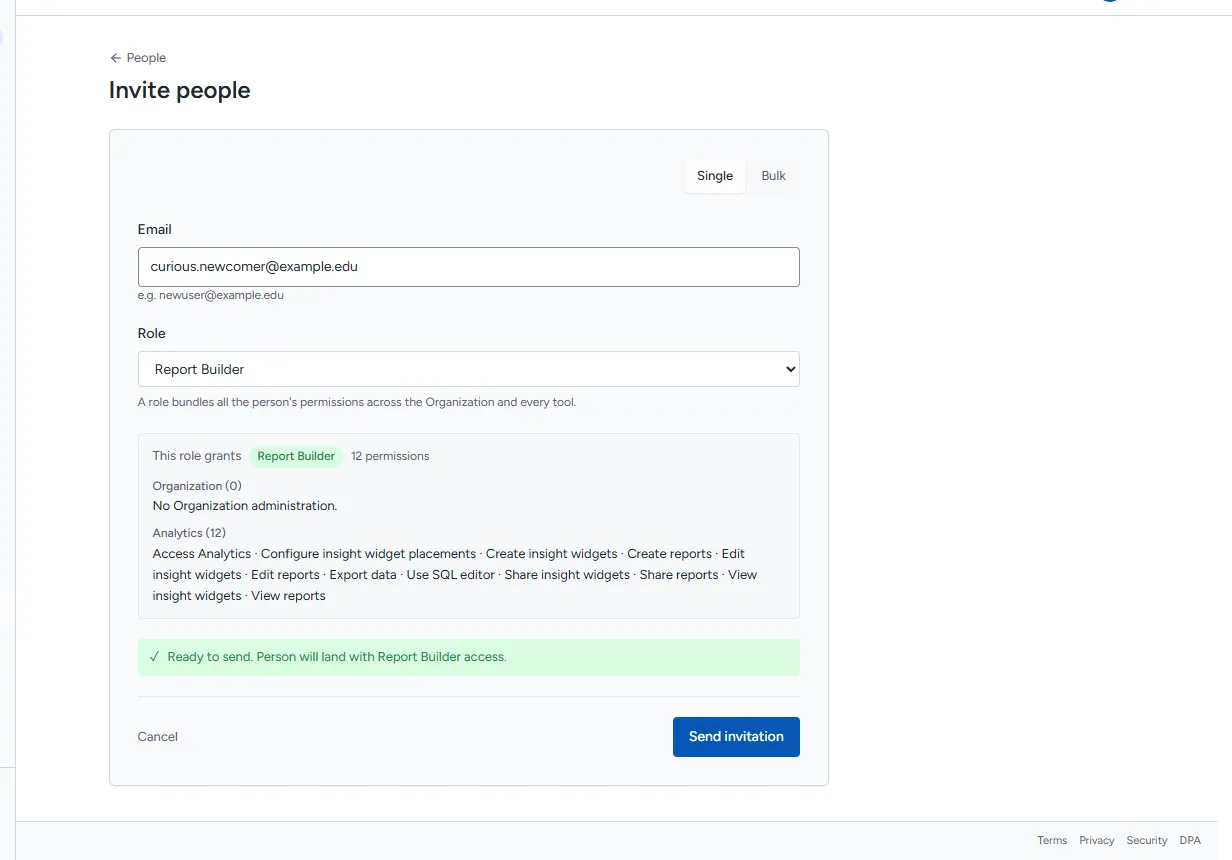
The person receives an email with a Set your password link that expires in 7 days. They set a password before signing in; see Sign in and reset your password.
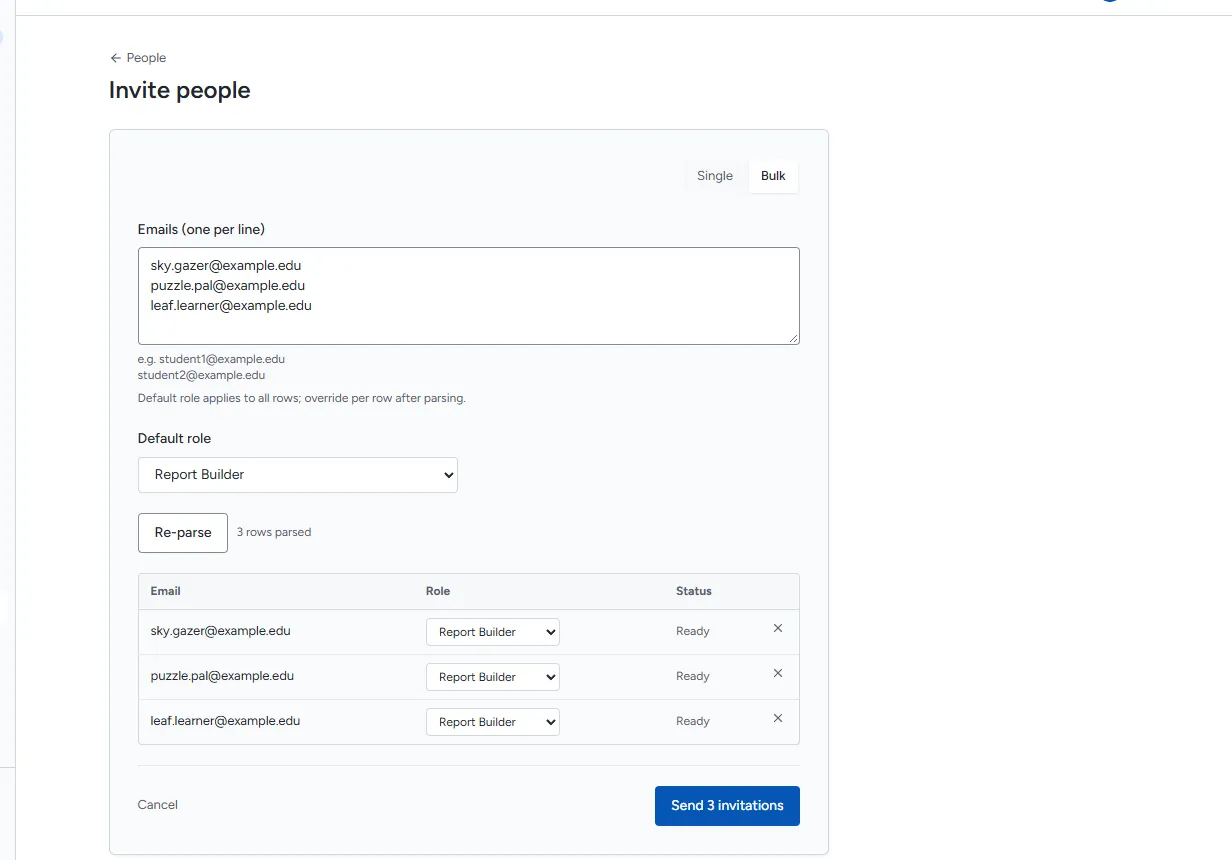
Invite several people
Section titled “Invite several people”- On Invite people, select Bulk.
- Paste the email addresses, one per line.
- Choose a Default role for everyone.
- Select Parse emails. Each address appears as a row; change the role on any row.
- Select Send N invitations.
Each row then shows Sent or the reason it failed. Rows already sent are skipped if you send again.
Roles you cannot invite with
Section titled “Roles you cannot invite with”- See Roles and permissions for role guidance and invitation limits.
- Assigning Owner follows the fixed Owner protections.
If the person already exists
Section titled “If the person already exists”If the email already belongs to someone in your Organization, Rowseta shows Person already exists. Select Open person details to change their role instead.