

Report a problem
On a signed-in Rowseta page, find Report a problem in the top bar beside the user menu. On a phone, the button shows an icon instead of text. If you don’t see this button, your role doesn’t include it. Ask someone who can edit roles (Owners and Admins by default). See Roles and permissions for the permission.
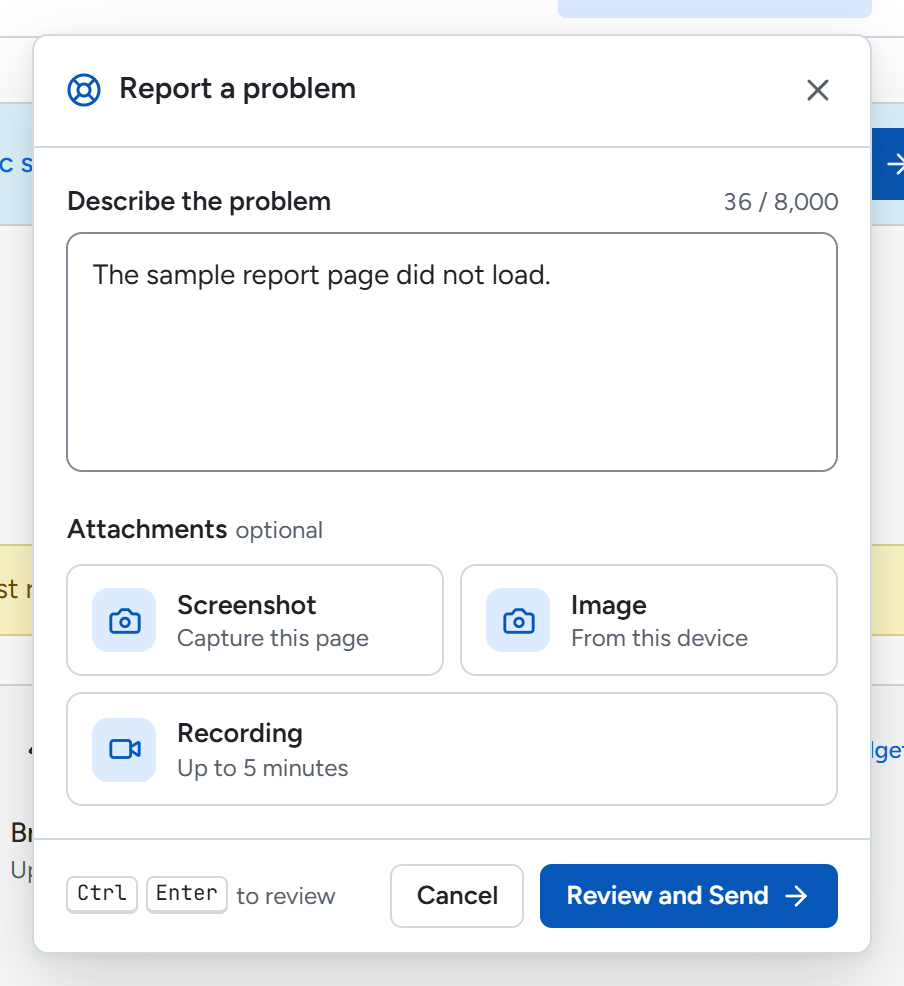
Select Report a problem to open a panel below the button. On a phone, it opens as a full-width sheet below the button, with the page dimmed behind it. Select Close at the top or Cancel in the footer to close the panel. With no draft, it closes at once. Write what happened in Describe the problem. Include the page and the steps that led to the issue.
If Report a problem appears on a Failed or Completed with warnings sync in Sync history, select it. The button attaches sync details that you cannot edit.
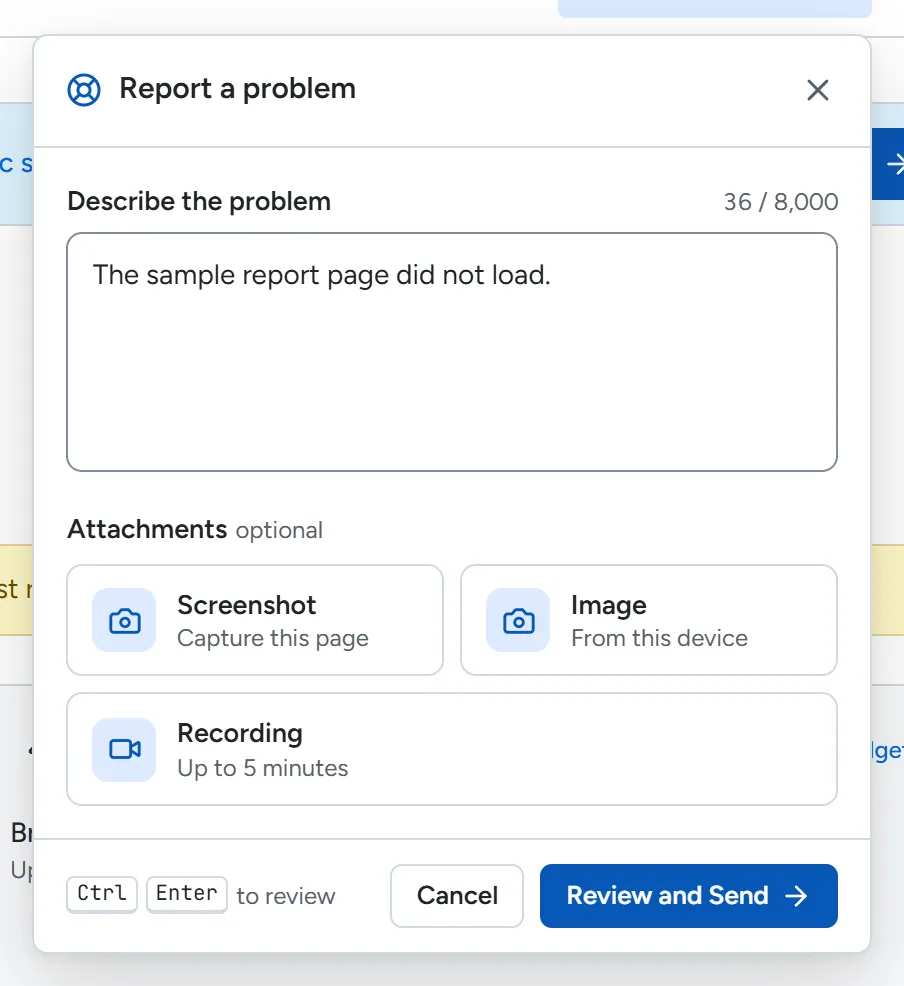
If the panel offers Add screenshot or Add recording, use it to show the issue. The notice says: Screenshots and recordings are sent exactly as shown, with nothing hidden or blurred, and may include student information. They are stored in your Organization’s data region. BentoBits support personnel and our service providers can access them where necessary to handle your report and to operate, secure and support the service.
To record your voice, select the checkbox “Include my microphone so I can explain the problem. My voice and nearby sounds may be recorded.” before Choose what to share. If your browser cannot record sound, Add recording offers screen-only recording and the consent step says “This browser cannot record your microphone. You can record the screen without voice.”
On desktop Chrome and Edge, Add screenshot asks the browser to share this tab. Choose this tab in the browser prompt. The panel hides while one exact frame is taken, then sharing stops at once. If you decline sharing or choose the wrong surface, the panel shows “To attach an exact screenshot, share this tab.” Select Try again to choose this tab. If sharing fails another way, it shows “The screenshot could not be captured. You can try again.”
In desktop Firefox and Safari, Add screenshot asks you to share the browser window. Choose the browser window in the sharing prompt. The whole browser window is attached, including the toolbar and address bar. If you share your entire screen, the panel shows “To attach a screenshot, share this browser window.” Select Try again to choose the browser window. Switching tabs or resizing the window during capture cancels it. The panel shows “The screenshot could not be captured. You can try again.” Select Try again to start again.
If screen sharing is unavailable in your desktop browser or on the page, including when Rowseta is inside an embedded frame, Add screenshot uses an approximate capture of the page instead. The panel shows “Approximate screenshot. Some fonts or effects may differ.”
A report can carry up to ten images, including screenshots. The Image tile lets you choose several files from your device at once. Choose PNG, JPEG, WebP or GIF files up to 25 MiB each, with no side over 16,384 pixels and no more than 50 million pixels per image. Large images are resized to fit the 5 MiB limit for each attached image. On phones, upload is the only attachment option. There is no screenshot or recording tile. The panel shows the note “You can send an image and description.”
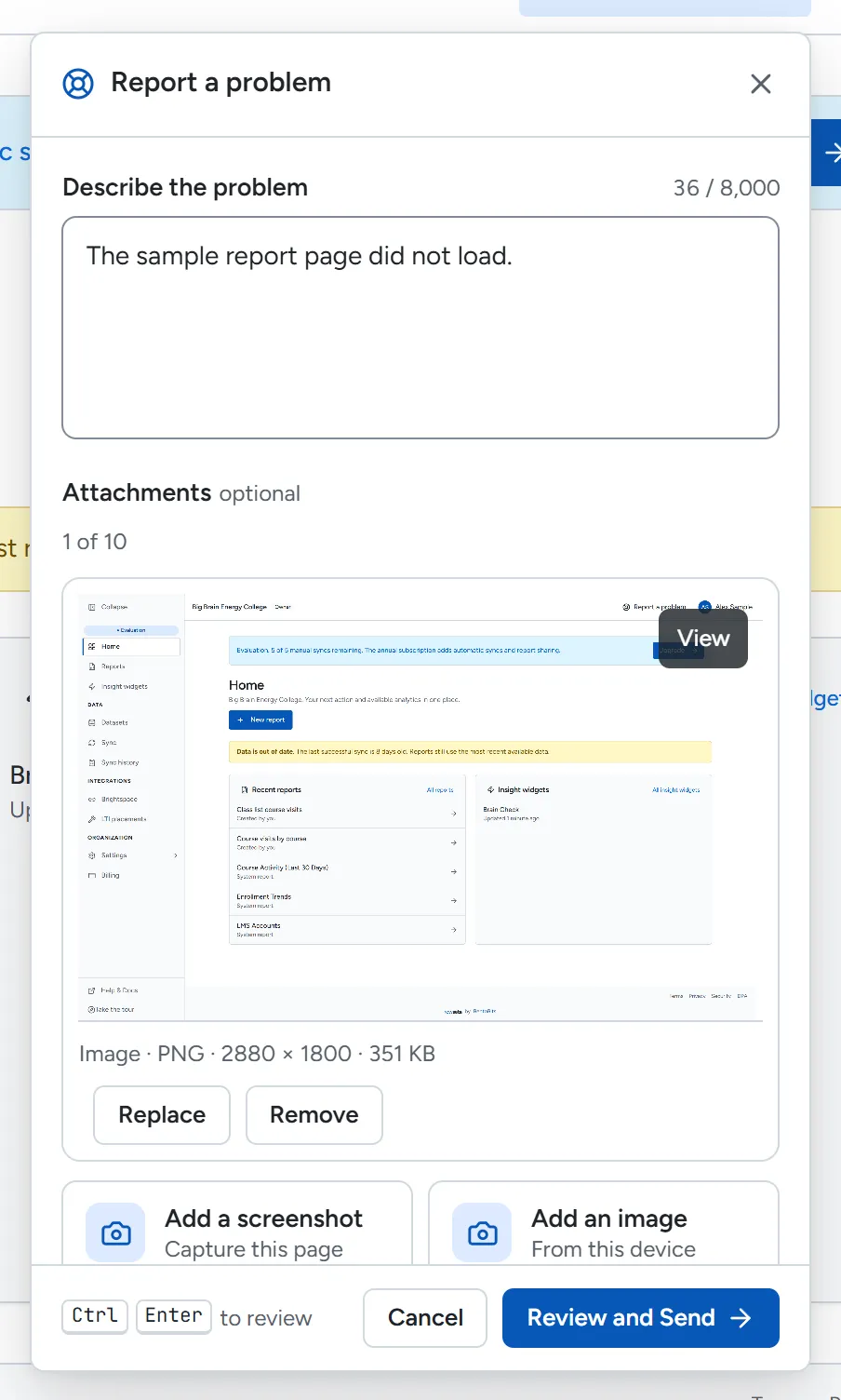
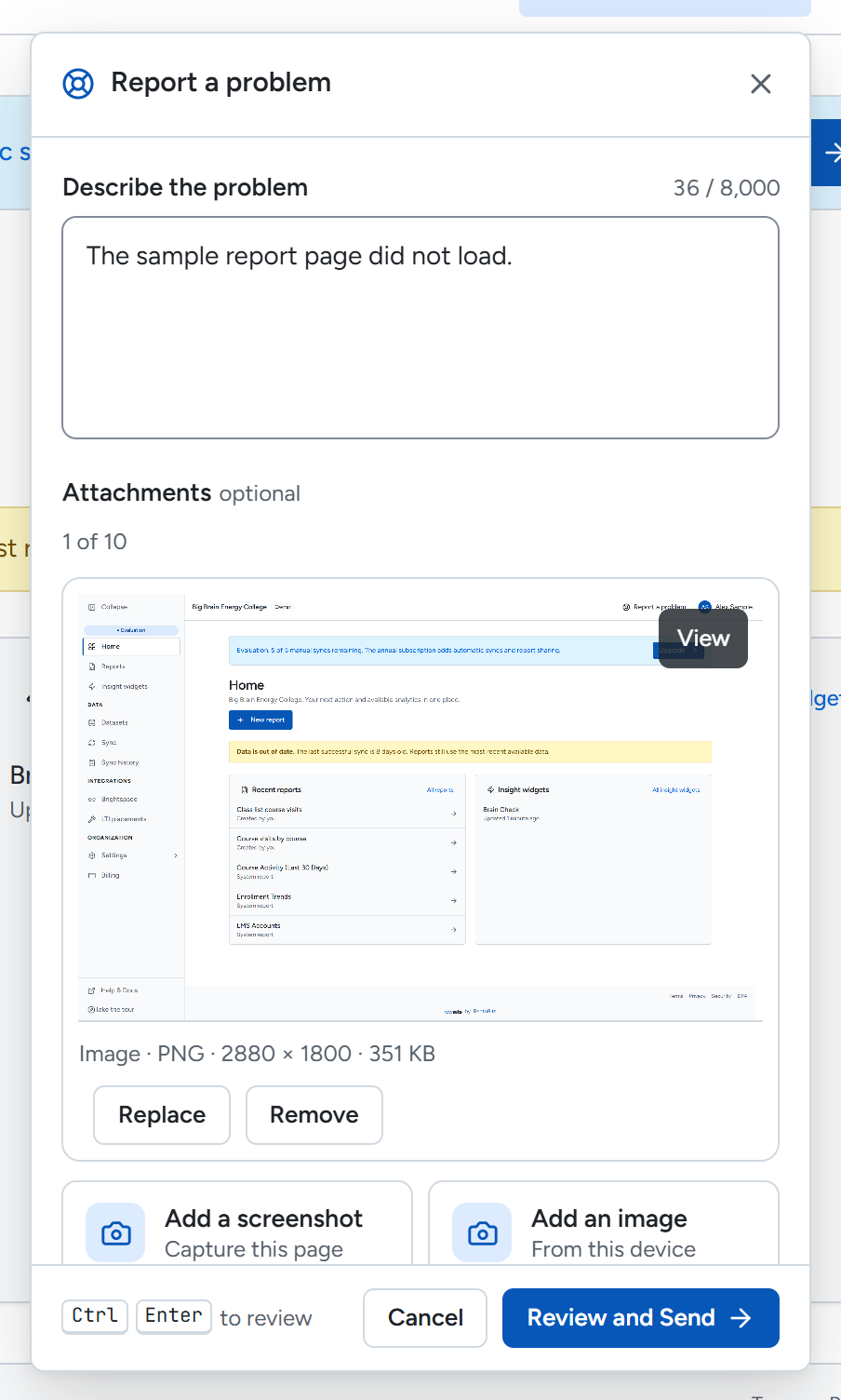
Attached images show as thumbnails, each with View and Remove. Select Remove to detach an image, or View to open the full-size viewer. With several images, use Previous and Next to step between them. Select Actual size to see its original size, or Fit to window to fit it again. Select Close viewer or press Escape to close it.
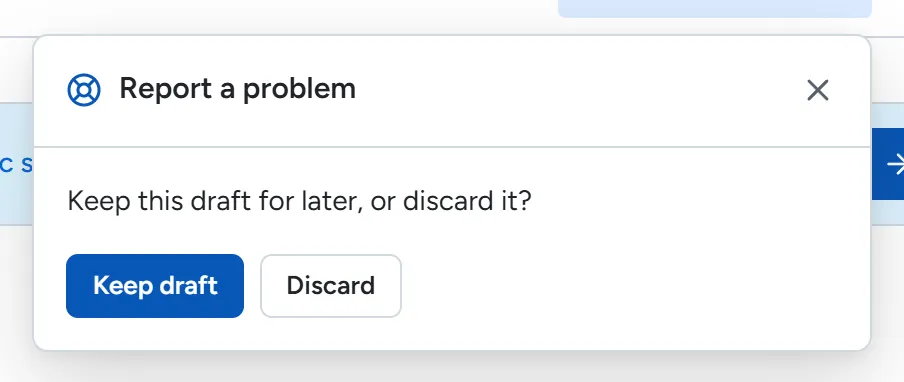
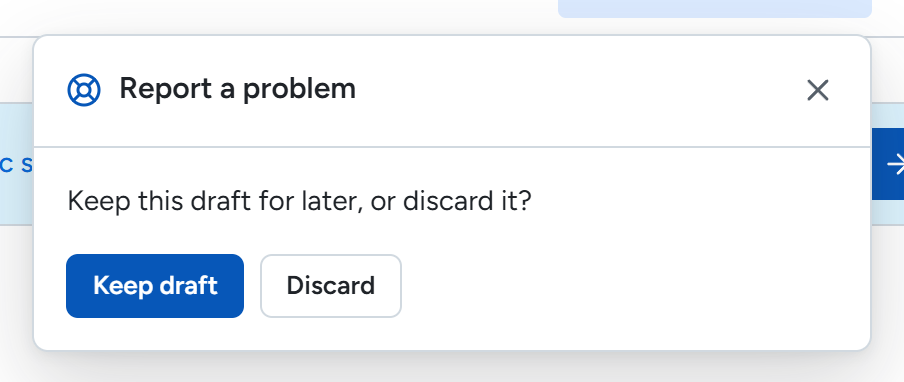
Select Close or Cancel with an unsent draft to choose Keep draft or Discard. Keep draft closes the panel and keeps your description and media for reopening on this page. Reloading or closing this browser tab clears it. Discard clears the draft and closes the panel. Nothing is uploaded before Send report.
To sign out, open the user menu and select Sign out. If the local check succeeds and there are no unsent reports or draft, no extra box appears. With unsent reports or a draft, a box titled Report a problem appears with Export and Clear choices. Export saves a copy as a file; Clear deletes the unsent reports and draft from this device. After either choice, sign-out normally continues once they have been removed from this device. If cleanup fails, the panel says: Some saved reports could not be deleted from this device. Choose Clear to try again, or Continue sign-out to sign out now. If you continue, anything not deleted may stay on this device. Select Clear to retry or Continue sign-out to proceed. If local storage cannot be accessed or the check takes too long, use Retry to check again or Continue to sign out.
Select Review and Send to review your description, any media shown and the Technical history row. On a phone, this row starts collapsed. Select it to see the history preview. The history contains recent page changes, labelled actions, request details and simplified errors. It does not contain typed values or request and response bodies. Review your description and media for unnecessary personal information before you select Send report.
The report sends your description, the media shown in the review and the technical history preview to BentoBits support. The support email includes your Organization’s display name and ID, receipt time, application version, attachment state, image and recording counts, up to 20 failed-request rows and a link that lets BentoBits support staff open the report in the BentoBits staff portal. It does not include your description, student data or media.
- While attachments are sending, the panel shows “Uploading attachments. You can keep working while this finishes.” with a progress bar, the amount sent and a percentage. It shows “Connection interrupted. Trying again…” during a retry and “Finishing upload…” while checking the upload.
- If an upload times out, the panel says “The upload took too long.” If checking does not finish, it says “The server did not finish checking the attachments.” Select Retry to try sending again. If attachments are pending, Remove pending attachments lets you remove them, then select Retry to finish sending the text report.
- If an upload fails, Export saves a copy to your device. Discard asks you to confirm removal from this device. If the panel says “The report could not be accepted. Export or discard it.”, use Export or Discard; Retry is not offered.
If delivery is interrupted, your submitted report may stay on this device for up to seven days while it retries. Panel messages use plain language without internal codes. After you send, the panel shows whether the report was received or needs further action. For storage and deletion details, see Support reports.