

Metrics
A metric is one number on the widget. Each metric reads one published report. Select a metric in the widget editor to open its settings.
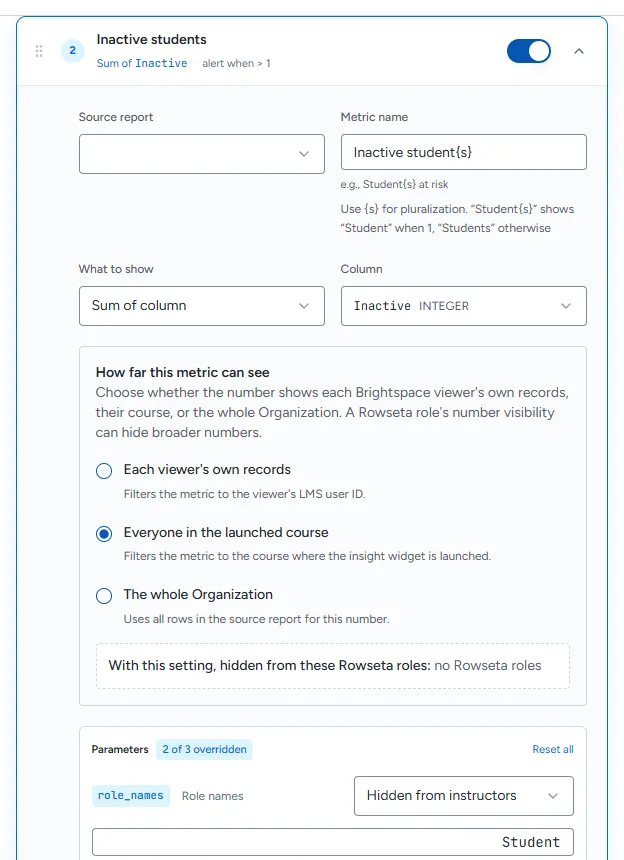
Source report
Section titled “Source report”Choose the published report the metric reads. Only reports that work with insight widgets are
listed (they have an OrgUnitId or Org Unit Id column).
If the report reads datasets that are empty inside a course, the editor warns: This report reads …, which are empty inside a course, so its numbers can be zero in Brightspace. Inside a course, Rowseta only has rows that belong to that course; datasets without a course column (other than Users, which holds the course’s enrolled people) are empty there. Choose another report if the metric must work in courses.
Metric name and {s}
Section titled “Metric name and {s}”The Metric name is the label under the number. Add {s} where a plural “s” belongs:
Student{s} at risk shows “Student at risk” when the number is 1 and “Students at risk”
otherwise.
What to show
Section titled “What to show”| Option | The number is |
|---|---|
| Count of matching rows | How many rows the report returns |
| Average of column | The average of a column you pick |
| Sum of column | The total of a column you pick |
| Minimum of column | The smallest value in a column you pick |
| Maximum of column | The largest value in a column you pick |
| Percentage of total | A percentage |
For the column options, pick the Column. If the report later stops returning that column, the metric shows Needs update; pick another column or fix the report.
How far this metric can see
Section titled “How far this metric can see”This decides whose rows count towards the number.
| Option | Meaning | Needs in the report |
|---|---|---|
| Each viewer’s own records | Only the viewer’s own rows, matched by their Brightspace user ID. The widget marks the number You. | OrgUnitId and UserId |
| Everyone in the launched course | Every row for the course the widget is opened in | OrgUnitId |
| The whole Organization | Every row in the report | nothing extra |
An option the report cannot support is disabled with the reason.
Rowseta roles that cannot see the number
Section titled “Rowseta roles that cannot see the number”Each Rowseta role has an Insight widget viewing limit (see Roles and permissions). Under the reach options the editor says With this setting, hidden from these Rowseta roles: and lists roles whose limit is narrower than this metric. To show the metric to one of them anyway, tick Also show to Rowseta role ….
Show, hide and reorder metrics
Section titled “Show, hide and reorder metrics”- Use the switch on a metric’s row to show or hide it on the widget without deleting it. The Metrics heading counts how many are visible and hidden.
- Drag a metric by its handle to reorder. The widget in Brightspace and the live preview always show metrics in this saved order.
- Select Add another metric to add more; select Remove metric inside a metric to delete it.
Changes save automatically (Changes save automatically. under each metric).
Parameters and alerts
Section titled “Parameters and alerts”If the source report has parameters, the metric lists them under Parameters so you can set their values and choose which course controls are available. Each metric can also have an Alert threshold. Both are covered in Alerts and instructor controls.