

Roles and permissions
Every person in your Organization has exactly one Rowseta role. A role is a set of permissions. Giving someone a different role requires Manage people (Owners and Admins by default, while editable roles keep the permission). Editing what a role can do requires Manage roles and permissions (Owners and Admins by default, while editable roles keep the permission).
Who can edit a role: someone whose role has Manage roles and permissions (Owners and Admins by default, while editable roles keep the permission). Open Settings > Roles and permissions.
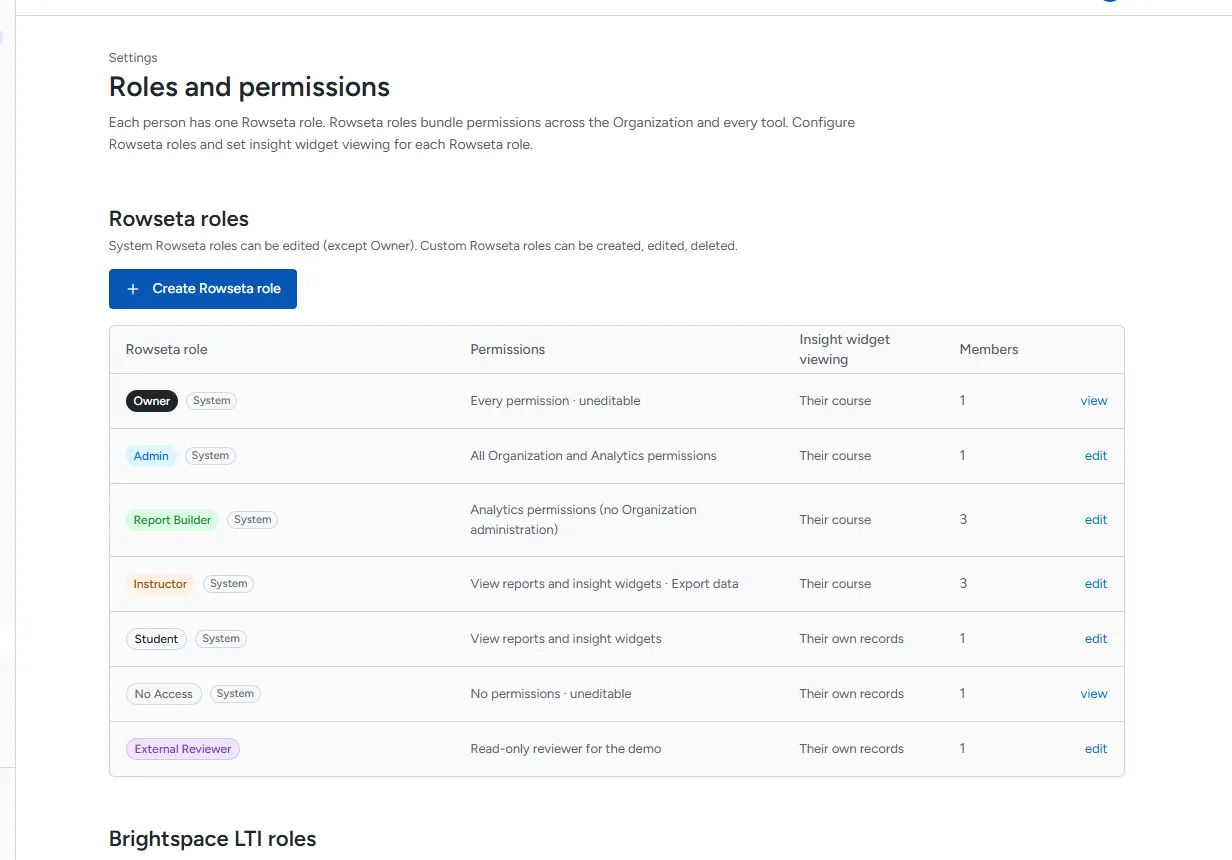
Default roles and permissions
Section titled “Default roles and permissions”The table shows each permission as named in the role editor. Yes means the built-in role holds that permission when an Organization is created. Admin, Report Builder, Instructor, Student and No Access permissions can be edited later. Owner always holds every permission. No Access holds no permissions by default; only the Owner role’s permissions cannot be changed. A person’s current permissions depend on their role’s current grants, not its name.
| Permission | Owner | Admin | Report Builder | Instructor | Student | No Access |
|---|---|---|---|---|---|---|
| Manage billing | Yes | Yes | No | No | No | No |
| Manage people | Yes | Yes | No | No | No | No |
| Manage connections | Yes | Yes | No | No | No | No |
| Manage tools | Yes | Yes | No | No | No | No |
| Manage general settings | Yes | Yes | No | No | No | No |
| Manage groups | Yes | Yes | No | No | No | No |
| Manage roles and permissions | Yes | Yes | No | No | No | No |
| View audit log | Yes | Yes | No | No | No | No |
| View sync history | Yes | Yes | No | No | No | No |
| Lift Brightspace launch ceiling | Yes | No | No | No | No | No |
| Access Analytics | Yes | Yes | Yes | Yes | Yes | No |
| View reports | Yes | Yes | Yes | Yes | Yes | No |
| Create reports | Yes | Yes | Yes | No | No | No |
| Edit reports | Yes | Yes | Yes | No | No | No |
| Delete reports | Yes | Yes | No | No | No | No |
| Share reports | Yes | Yes | Yes | No | No | No |
| Use SQL editor | Yes | Yes | Yes | No | No | No |
| View insight widgets | Yes | Yes | Yes | Yes | Yes | No |
| Create insight widgets | Yes | Yes | Yes | No | No | No |
| Edit insight widgets | Yes | Yes | Yes | No | No | No |
| Delete insight widgets | Yes | Yes | No | No | No | No |
| Share insight widgets | Yes | Yes | Yes | No | No | No |
| Configure insight widget placements | Yes | Yes | Yes | No | No | No |
| Configure widget detail names | Yes | Yes | No | No | No | No |
| Configure datasets | Yes | Yes | No | No | No | No |
| Export data | Yes | Yes | Yes | Yes | No | No |
| Manage sync | Yes | Yes | No | No | No | No |
Access Analytics is also needed to open Analytics pages and use their other permissions. A task may require several permissions, so use the guidance on that task page if a menu or button is absent. Report sharing is available on paid plans; its full guide is coming with the post-launch sharing work.
The Insight widget viewing setting is a maximum, not a permission grant. A role still needs widget admission and the widget’s placement and audience must allow the viewer. A signed launch with No Access is refused.
Brightspace launches map to Instructor, Student or No Access through the fixed mapping below. See What each LTI role can do.
Someone whose role holds Manage roles and permissions can edit built-in roles other than Owner, including No Access, and their names. An edited built-in role shows Modified from defaults; select Reset to defaults to restore its original permissions.
Fixed rules
Section titled “Fixed rules”- Owner protection. Changing an Owner’s role, suspending, unsuspending or removing an Owner, or assigning Owner to someone requires Manage people and an actor who is an Owner. You cannot change, suspend or remove yourself. Demoting, suspending or removing the last active Owner is refused.
- Fixed LTI mapping. A signed Brightspace Administrator, Instructor, Teaching Assistant or Content Developer claim maps to Instructor. Learner maps to Student. Mentor, an unknown claim or no claim maps to No Access. This mapping is not editable. It sets the role on the first launch and on later launches only while the member’s role is still assigned by launch. A manual role assignment through People needs Manage people and remains in place on later launches, including launches with Mentor or another unmapped claim. Widget admission uses that stored role.
- Launch ceiling. A launch-created member resolves only Analytics permissions until a recorded lift. Assigning a role needs Manage people. Giving that member a role with Organization permissions also needs Lift Brightspace launch ceiling and explicit confirmation; the lift records who approved it and when. Only an Owner who holds Manage roles and permissions may add the lift permission to a role. Lowering the member to a role without Organization permissions restores the ceiling. Launch queries remain scoped to the signed course.
- Configure in a signed course. A widget launch needs Access Analytics to be admitted and View insight widgets to open the widget. An Instructor-mapped launch with those permissions may use Configure for an allowed parameter or alert on the placement in its signed course. No synced enrolment is required. Configure changes only that course’s placement; it does not lift the launch ceiling. Student and No Access launches cannot Configure.
- Names on widget details. See the widget detail names rule.
Create a custom role
Section titled “Create a custom role”Custom roles are useful for people such as a billing manager or an external reviewer.
- Select Create Rowseta role.
- Enter a Name and, optionally, a Description.
- Tick the permissions the role should have. Select all and Clear all help.
- Choose its Insight widget viewing (see below).
- Select Create Rowseta role.
To start from an existing role, open it and select Copy Rowseta role.
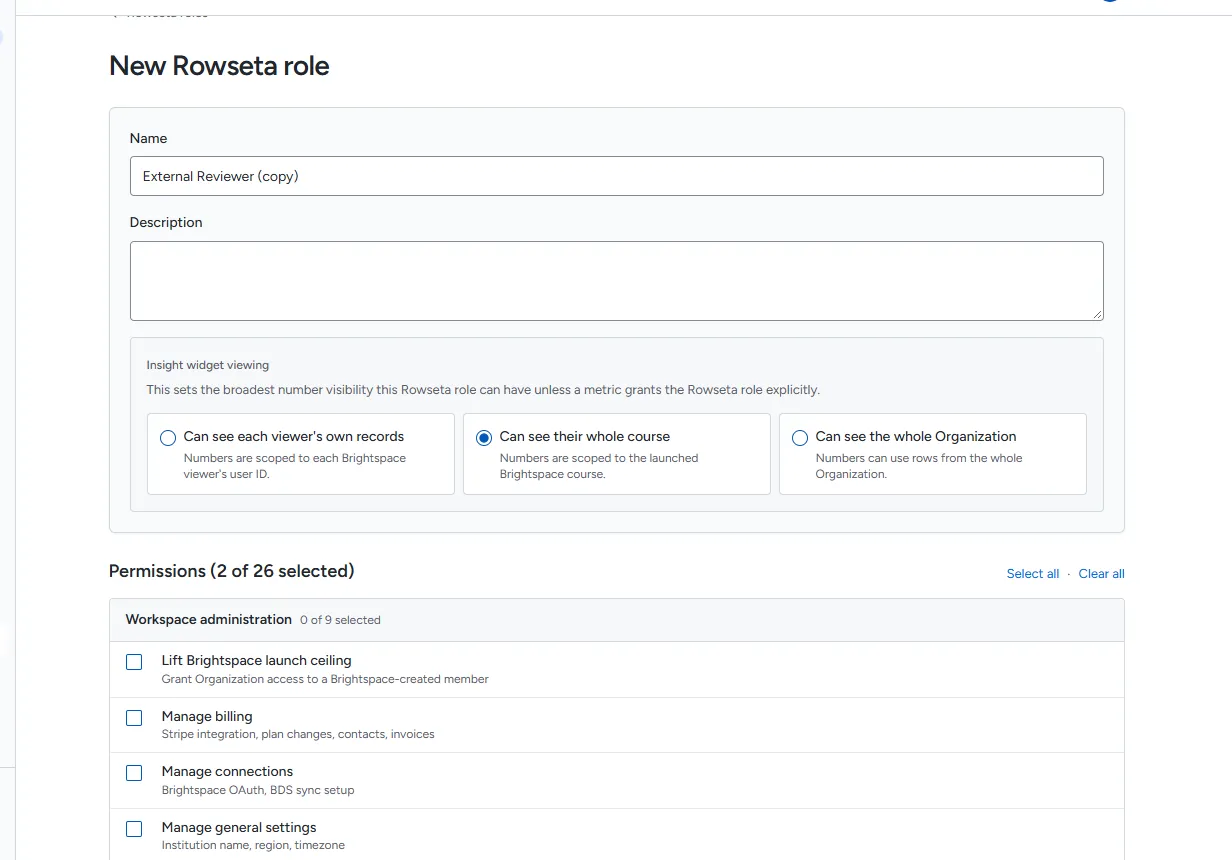
A role with no permissions grants no access.
Edit or delete a role
Section titled “Edit or delete a role”- Select the role in the list.
- Change its name, description, permissions or insight widget viewing.
- Select Save changes.
To delete a custom role, first give its members another role; a role that anyone holds cannot be deleted. Built-in roles cannot be deleted.
If you add permissions to the role you hold yourself, Rowseta asks you to confirm by typing the role’s name. The change is recorded in the audit log.
Insight widget viewing
Section titled “Insight widget viewing”Each role has an Insight widget viewing limit: the broadest number its members can see in an insight widget, unless a metric grants the role explicitly.
| Option | Numbers can use |
|---|---|
| Can see each viewer’s own records | Only the viewer’s own rows |
| Can see their whole course | Rows for the launched Brightspace course |
| Can see the whole Organization | Rows from the whole Organization |
A metric set to a broader reach than a role’s limit is hidden from that role. See Metrics.
Brightspace LTI roles
Section titled “Brightspace LTI roles”Further down the page, Brightspace LTI roles shows how Brightspace launch roles become Rowseta roles and what each can do in a course. The mapping is fixed. See What each LTI role can do.