

Live preview and who sees what
Preview the widget against a course
Section titled “Preview the widget against a course”The Live preview on the right of the widget editor shows the real widget, exactly as it will look in Brightspace, computed for one course.
- In Search for a preview course, type part of the course name or its ID, for example
THINK 101or70101. - Select the course from the matching results. If none match, the panel says No courses match your search.
- The preview updates each time your changes save.
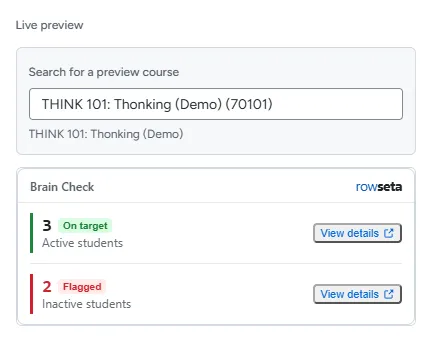
The first preview of a course can take a little while: the widget shows Computing metrics until the numbers are ready. Later previews of the same course are faster.
View details in the preview opens the course details page. Metrics with The whole Organization reach are left out of the preview, as they are in a course.
If you don’t see this menu or button, your role doesn’t include it. Ask someone who can edit roles (Owners and Admins by default).
Who sees this widget
Section titled “Who sees this widget”The Who sees this widget section sets and explains visibility.
- Always: the default audience setting. See the fixed launch rules for admission.
- Students also see their own numbers: the student viewing switch. It is off by default. See the fixed launch rules for student viewing.
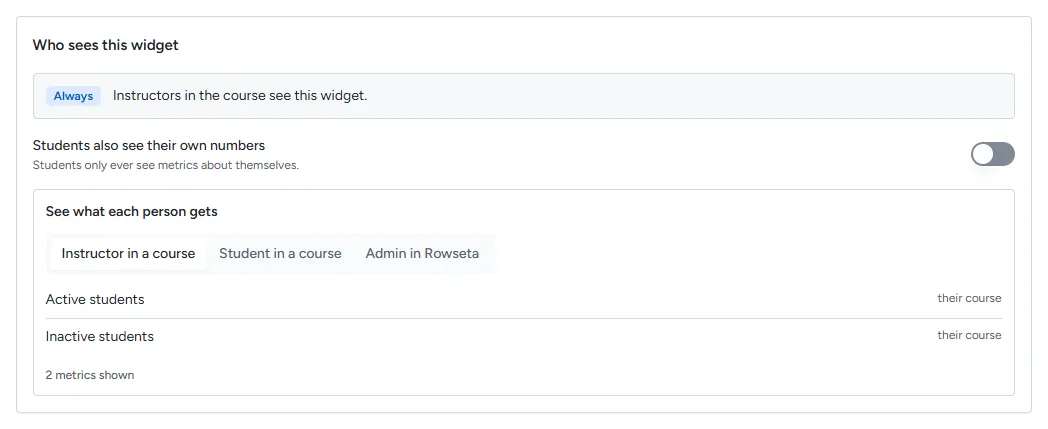
See what each person gets
Section titled “See what each person gets”Under See what each person gets, three tabs preview metrics for different viewers. For launch access and visibility rules, see Roles and permissions.
| Tab | What it shows |
|---|---|
| Instructor in a course | Course preview |
| Student in a course | Student preview |
| Admin in Rowseta | Rowseta preview |
A metric marked cannot be scoped to this course or person needs a column the report does not return; see Metrics.
See the fixed launch rules and default grants.