
The User ID security setting
Every Brightspace launch into Rowseta must include the person’s Brightspace User ID. Brightspace only sends it when the Rowseta deployment’s Security Settings allow it. Dynamic registration does not always turn it on for you.
What happens without it
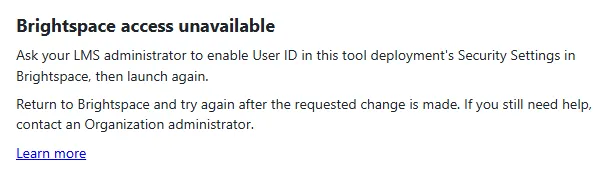
Section titled “What happens without it”When the setting is off, Rowseta displays this page:
Brightspace access unavailable
Ask your LMS administrator to enable User ID in this tool deployment’s Security Settings in Brightspace, then launch again.
In a course homepage widget, the same message appears inside the widget frame. Integrations > LTI placements also shows a banner after this refusal. It clears after a successful launch.
Why Rowseta needs it
Section titled “Why Rowseta needs it”The User ID connects the person who opened Rowseta to their rows in your synced Brightspace data. Rowseta needs it to show metrics about a person’s own records, and it refuses launches without it so that nobody gets a widget that silently shows wrong or empty numbers.
The User ID never decides who someone is in Rowseta or what they may do. Identity comes from the signed LTI launch itself. See Brightspace launch members.
Turn it on
Section titled “Turn it on”- In Brightspace, go to Admin Tools > Manage Extensibility > LTI Advantage.
- Open the Rowseta registration, then its deployment.
- Under Security Settings, tick User ID.
- Save the deployment.
- In Brightspace, open the Rowseta link from a course as a test user. Check that the launch succeeds and the banner on Integrations > LTI placements clears.