Manage people
If you don’t see this menu or button, your role doesn’t include it. Ask someone who can edit roles (Owners and Admins by default).
Open Settings > People.
Find someone
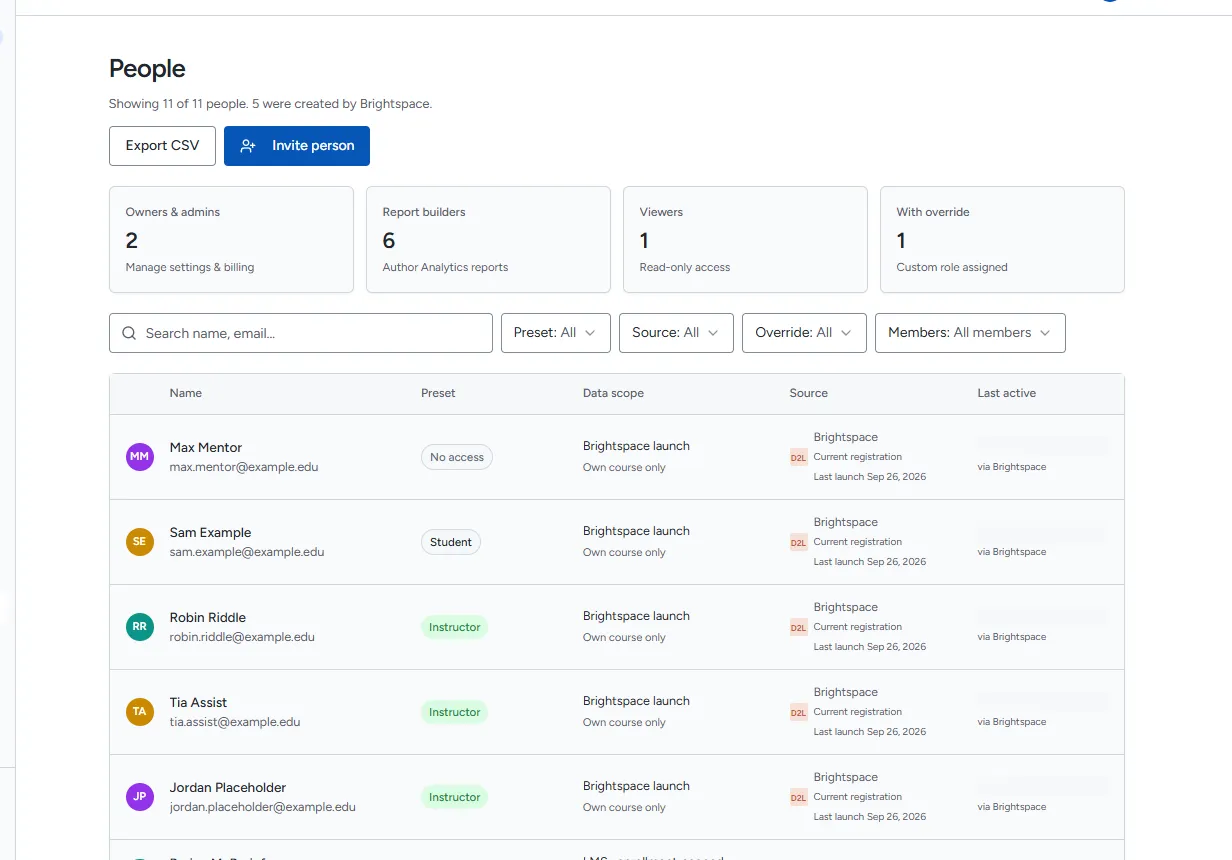
Section titled “Find someone”The People list shows each person’s name, role (Preset), Data scope, Source and Last active (the later of their last Rowseta sign-in and their last Brightspace launch, marked “via Rowseta” or “via Brightspace”).
- Type in Search name, email….
- Filter by Role, Source (Brightspace, Signup admin, Invited), Override and Members (recent launches or All members).
- Select Export CSV to download the list.
Change someone’s role
Section titled “Change someone’s role”- Select the person.
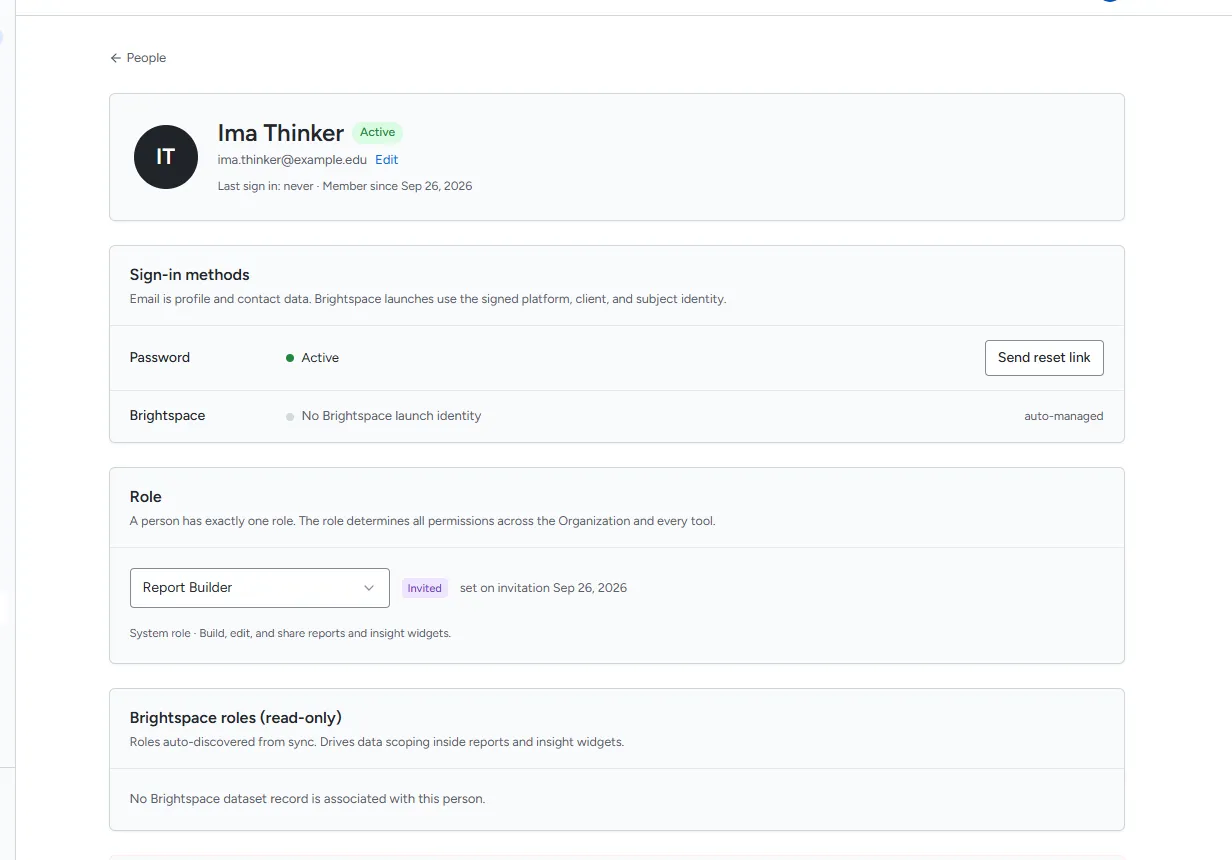
- Under Role, choose the new role. It applies at once.
See the fixed Owner protections. Giving someone a role with Organization-wide powers asks you to confirm by typing the role name. See Owners and Brightspace launch members.
Change someone’s email
Section titled “Change someone’s email”Only for direct members, not Brightspace launch members.
- On the person’s page, select Edit next to the email.
- Enter the New email and select Change email.
This signs the person out everywhere, cancels any pending activation or password reset links, records the change in the audit log, and means they sign in with the new email from now on.
A launch member’s email comes from Brightspace and cannot be changed here.
Send a password email
Section titled “Send a password email”On a direct member’s page, select Send password setup email if their password is Not set, or Send reset link if it is Active. The email contains a single-use link. These actions are unavailable for launch members and suspended people. See Sign in and reset your password.
Suspend or unsuspend someone
Section titled “Suspend or unsuspend someone”A suspended person cannot sign in or launch, but their record stays.
- On the person’s page, under Danger zone, select Suspend person.
- Confirm. The person is signed out of all sessions.
Select Unsuspend person to let them in again.
Remove someone
Section titled “Remove someone”- On the person’s page, under Danger zone, select Remove person.
- Confirm with Remove. This cannot be undone. The audit log keeps a record of the removal.
See the fixed Owner protections.
Brightspace roles
Section titled “Brightspace roles”The Brightspace roles (read-only) section lists the Brightspace roles found for this person in your synced data. They help determine which report rows the person sees. They appear after a sync and cannot be changed in Rowseta.