

Run a report
If you don’t see this menu or button, your role doesn’t include it. Ask someone who can edit roles (Owners and Admins by default).
Run a report
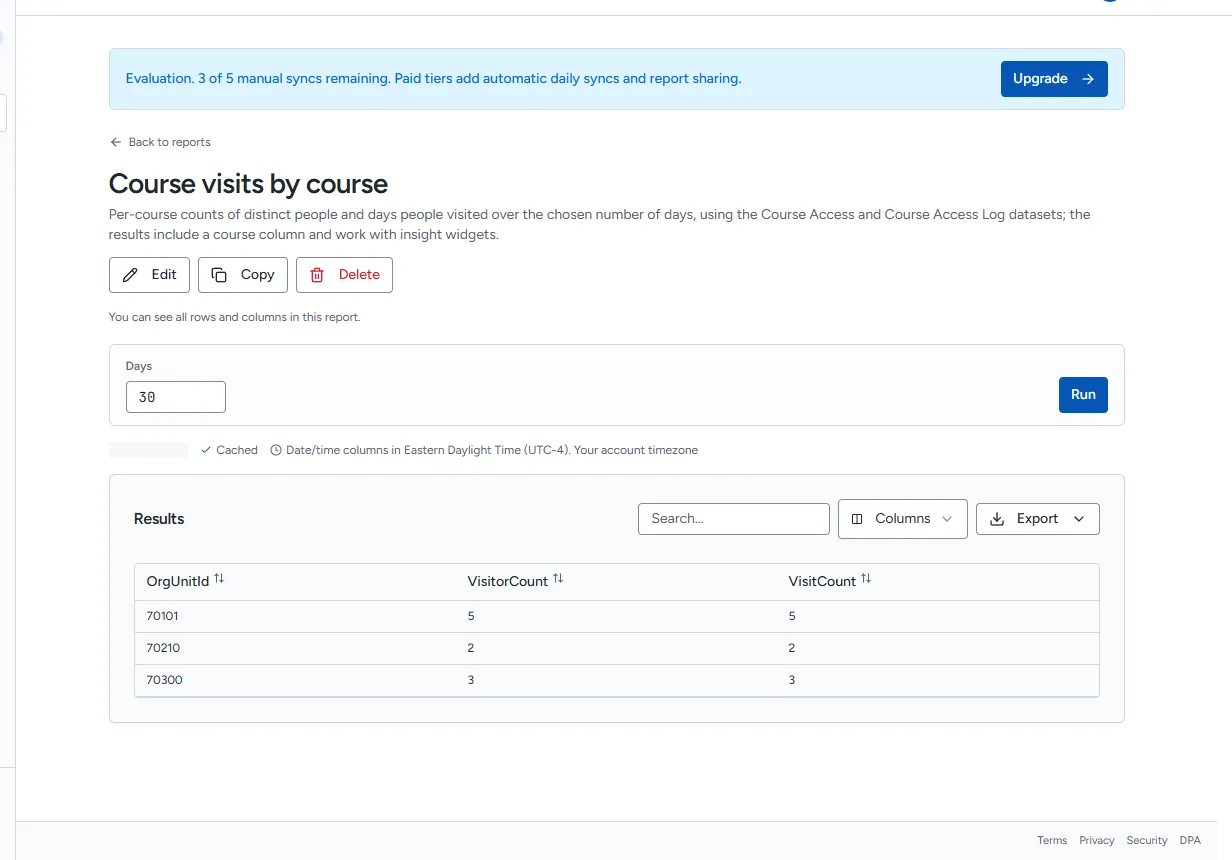
Section titled “Run a report”- In the sidebar, select Reports.
- Select the report’s name. Use Search reports… or the Published and Draft filters to find it.
- If the report has parameters, adjust them in the bar at the top.
- Select Run.
While the report runs, a progress panel shows what Rowseta is doing. The results then appear with the row count and how long the run took.
Work with the results
Section titled “Work with the results”- Search… filters the rows shown.
- Select a column heading to sort by it.
- Columns lets you hide or show columns in the table.
- Export downloads the results. See Export results.
What the scope line means
Section titled “What the scope line means”Under the report name, a line tells you whose data you are seeing:
| Message | Meaning |
|---|---|
| You can see all rows and columns in this report. | Nothing is hidden from you. |
| Rows are limited to the course you opened this from. | You opened Rowseta from a Brightspace course, so only that course’s rows appear. |
| You can see only your own records in this report. | Your access is limited to your own records. |
| Rows and columns are limited by how this report is shared with you. | Your access limits some rows or columns. |
Cached results
Section titled “Cached results”Running the same report again with the same parameters is often instant because Rowseta reuses recent results. The results line then shows From cache. While Rowseta saves new results for reuse it shows Caching…, then Cached.
Cached results are never older than your data: after a sync, the next run uses the new data.
How fresh the data is
Section titled “How fresh the data is”Reports show the data from your last completed sync. To see when that was, open Data > Sync (Data freshness) or Sync history.
Home warns you when data is behind:
- Data is out of date. The last successful sync is older than expected. Reports still use the most recent data. Run a sync.
- Some data did not refresh. Some datasets failed in the last sync, so reports that use them may be incomplete. Open Sync details on Home to see which ones.
Dates and times
Section titled “Dates and times”Date and time columns are shown in your Organization’s display timezone. When it is not UTC, the results line says which timezone is used. Change it under Settings > General.