

Alerts and instructor controls
You decide, per metric, which controls appear in a signed course. Changes made through Configure apply only to that course; every other course keeps the settings you set here. See the fixed Configure rule.
If you don’t see this menu or button, your role doesn’t include it. Ask someone who can edit roles (Owners and Admins by default).
Parameter controls in a course
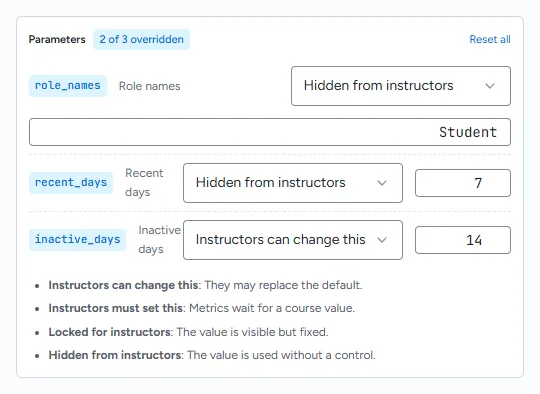
Section titled “Parameter controls in a course”When a metric’s source report has parameters (for example “Inactive days”), the metric lists them under Parameters. For each parameter:
- Enter the value this widget should use, or leave it empty to use the report’s default. A value that differs from the report default is marked Custom.
- Choose who can change it:
- Instructors can change this: Configure offers a replacement for the default when the fixed Configure rule permits it.
- Instructors must set this: Metrics wait for a course value.
- Locked for instructors: The value is visible but fixed.
- Hidden from instructors: The value is used without a control.
The heading shows how many parameters you have overridden, and Reset all puts every parameter back to the report default with Instructors can change this.
If several metrics use a parameter with the same name, the first metric in the saved order decides whether that parameter has a control in Configure. Set its instructor option accordingly.
Alert threshold
Section titled “Alert threshold”An alert turns a metric red with a Flagged label when its number crosses a threshold, and green with On target when it does not.
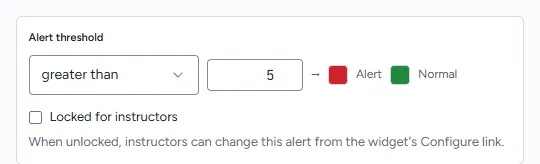
- Under Alert threshold, choose a comparison: greater than, greater than or equal to, less than, less than or equal to, equal to or not equal to. Choose No alert to remove the alert.
- Enter the threshold number.
A metric with no alert shows its number without a colour or label.
Alert changes in a course
Section titled “Alert changes in a course”Under the alert, Locked for instructors controls changes in the course widget:
- Unticked: the alert is adjustable from Configure for the signed course.
- Ticked: the alert is visible but fixed. In the course it reads “(locked)”.
Course Configure
Section titled “Course Configure”To change an adjustable parameter or alert in a course, open Configure at the bottom of the widget. See the fixed Configure rule and What instructors and students see.