
Brightspace launch members
On a validated first launch of Rowseta or an insight widget from Brightspace, Rowseta creates a launch member for them. No invitation, password or approval is needed.
How Rowseta recognises a person
Section titled “How Rowseta recognises a person”A launch member is identified only by the signed launch from your Brightspace registration: the platform, the tool’s Client ID and the person’s LTI subject ID. Rowseta never uses email, name or Brightspace user ID to decide who someone is or to join two members together.
This means:
- Two launch members can share an email address, for example test accounts.
- If you register Rowseta in Brightspace again, launches through the new registration create new members. People shows each member’s registration as Current registration or Earlier registration, so you can tell them apart.
- A launch member cannot sign in with a password, and password reset does not apply to them.
How Brightspace roles map to Rowseta
Section titled “How Brightspace roles map to Rowseta”Administrator, Instructor, Teaching Assistant and Content Developer launch claims become the Instructor Rowseta role. Learner becomes Student. Mentor, an unknown role or no role becomes No Access. An administrator launch does not grant Organization administration automatically.
What a launch member can reach
Section titled “What a launch member can reach”A launch member’s initial role follows the fixed mapping. A role set in People survives later launches. Launch members have two limits:
- Analytics only. They can use only Analytics permissions, even if their role has more, until someone lifts the limit (see below). Organization administration, billing, connections and settings are closed to them.
- Own course only. Every query in their session is limited to the Brightspace course they opened Rowseta from. Nothing they do can widen it.
Find launch members in People
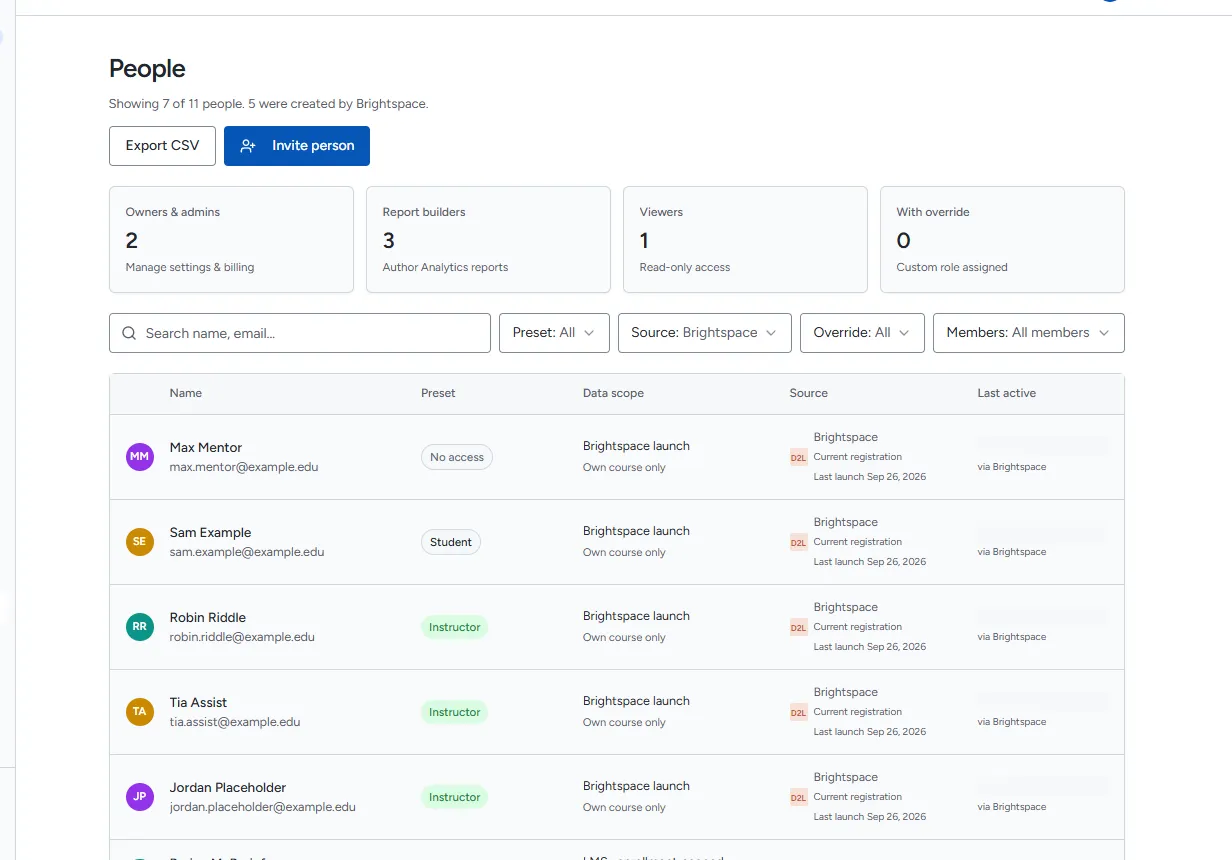
Section titled “Find launch members in People”In Settings > People, launch members show:
- Brightspace launch and Own course only instead of a data scope,
- Current registration or Earlier registration,
- Last launch with a date, or Never launched,
- their Brightspace email, or No email shared when Brightspace sent none.
By default the list shows recent launches: launch members who launched in the last 180 days. Choose All members under Members to see everyone.
Change a launch member’s role
Section titled “Change a launch member’s role”If you don’t see this menu or button, your role doesn’t include it. Ask someone who can edit roles (Owners and Admins by default).
- Select the person in Settings > People.
- Under Role, choose the new role.
A role you set by hand is kept: later launches do not change it. This can give a Mentor access to widgets, subject to the default grants and fixed launch rules.
Give a launch member more access
Section titled “Give a launch member more access”Giving a launch member a role with Organization powers (Owner, Admin, or any role with a Workspace administration permission) lifts the launch limit. This needs care, because the person then reaches everything that role allows.
- Open the person in Settings > People.
- Under Role, choose the role with Organization powers.
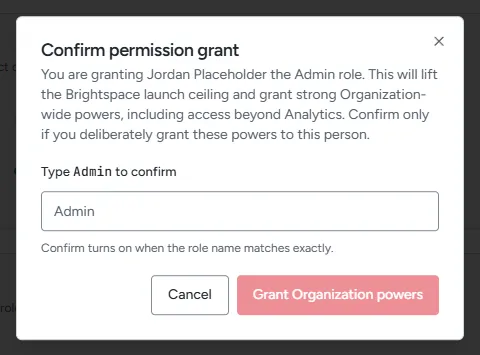
- Read the confirmation. It names the person, the role, and says it will lift the Brightspace launch ceiling.
- Type the role name to confirm and select Grant Organization powers.
The lift is recorded with who did it and when. Choosing a role without Organization powers again restores the limit.