
Syncs and sync history
A sync copies the latest data from Brightspace into Rowseta. Brightspace produces its data sets on its own schedule; a sync picks up whatever is new since the last one.
Run a sync
Section titled “Run a sync”If you don’t see this menu or button, your role doesn’t include it. Ask someone who can edit roles (Owners and Admins by default).
Open Data > Sync.
- Select Sync now.
- In Evaluation, confirm Use a manual sync? with Use credit & sync.
- The progress panel shows each dataset moving through Queued, Downloading, Processing and Saving. You can leave the page; the sync keeps running.
When it finishes, Rowseta says Sync complete. N datasets updated or All datasets are up to date.
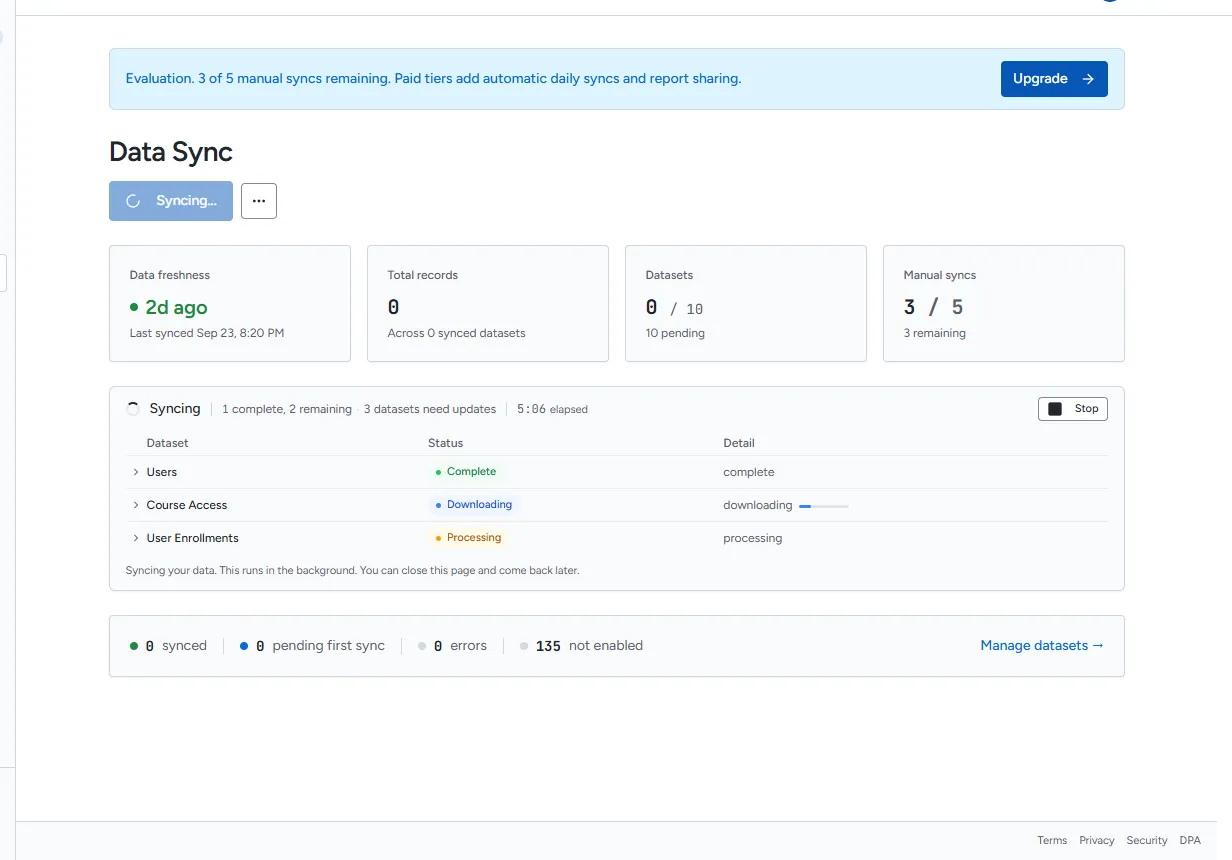
To stop a running sync, select Stop on the progress panel. Datasets that already finished are kept.
The cards at the top
Section titled “The cards at the top”| Card | What it shows |
|---|---|
| Data freshness | When the last sync finished, or Never synced |
| Total records | How many records Rowseta holds |
| Datasets | All datasets synced, or how many are pending |
| Manual syncs (Evaluation) | How many manual syncs you have left |
| Auto-sync (paid plans) | Enabled, and when Rowseta next checks Brightspace. Rowseta checks every hour. |
When Brightspace has published new data, the page says New data is available from Brightspace. Select Sync now to fetch it.
When a sync fails
Section titled “When a sync fails”The page shows a notice under the header with the reason:
- Last sync failed. The Brightspace connection needs attention. Select Fix connection (or Details) and follow the steps. See Troubleshooting sync and datasets.
- Last sync failed on our side. Your Brightspace setup is fine. Try again later; contact support if it keeps happening.
- A Brightspace download limit message: wait for the time it gives, then sync again.
Failed datasets are retried automatically where possible. A failed sync does not use one of your Evaluation manual syncs.
Re-import or delete all data
Section titled “Re-import or delete all data”Open the More sync actions menu (…) next to Sync now:
- Re-import all runs a full sync that downloads every enabled dataset again from scratch. Use it if data looks wrong or incomplete.
- Delete all data permanently deletes all synced data, discovery records and sync history.
Type
deleteto confirm. The next sync discovers and imports everything again.
Sync history
Section titled “Sync history”Open Data > Sync history.
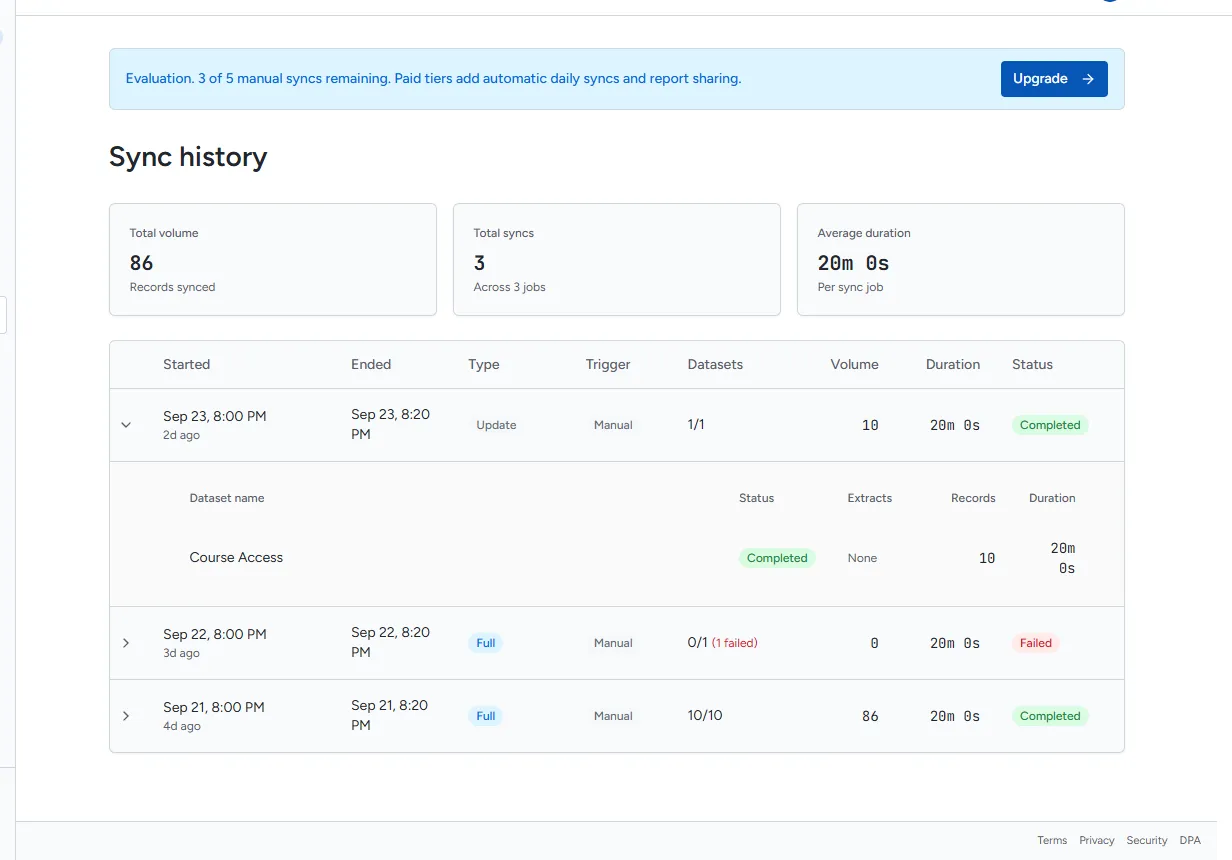
Each row is one sync, with when it started and ended, its Type (Full or Update), its Trigger (Manual or Auto), how many datasets it touched, the volume, the duration and its status: Completed, Completed with warnings, Partial or Failed.
Select a row to see each dataset’s status, records and duration, and the Brightspace extracts that were applied. Errors and warnings are shown with the dataset they belong to.