

Organization settings and audit log
General settings
Section titled “General settings”If you don’t see this menu or button, your role doesn’t include it. Ask someone who can edit roles (Owners and Admins by default).
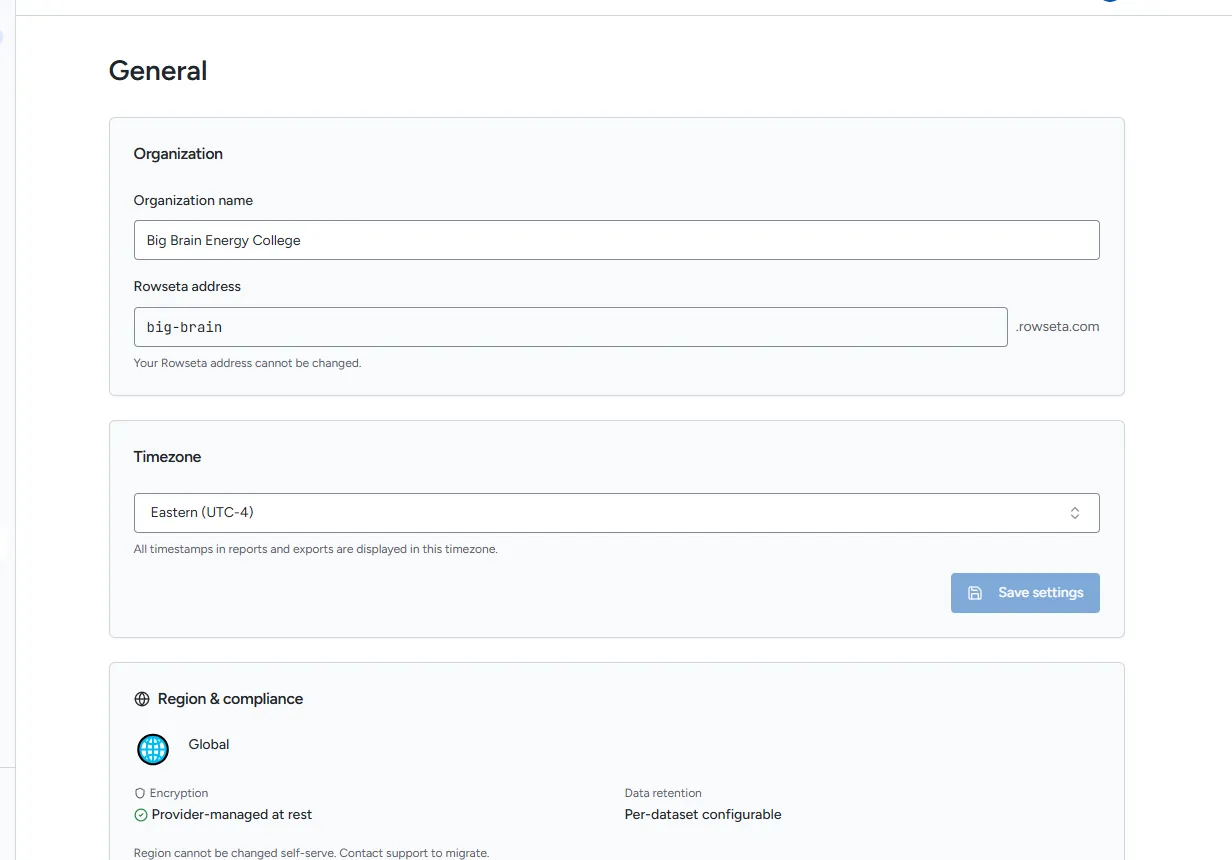
Open Settings > General.
Change the Organization name
Section titled “Change the Organization name”- In the Organization card, edit Organization name.
- Select Save settings at the bottom right of the Timezone card. This one button saves changes to either the Organization name or timezone. It is disabled until you change something.
- Rowseta confirms with Settings saved.
Your Rowseta address is shown here too. It cannot be changed.
Change the timezone
Section titled “Change the timezone”- In the Timezone card, search for and choose a timezone. All timestamps in reports and exports use it.
- Select Save settings at the bottom right of the Timezone card.
See your region
Section titled “See your region”The Region & compliance card shows the region chosen at signup. It cannot be changed self-serve; contact support if you need to move. See Your data region.
Audit log
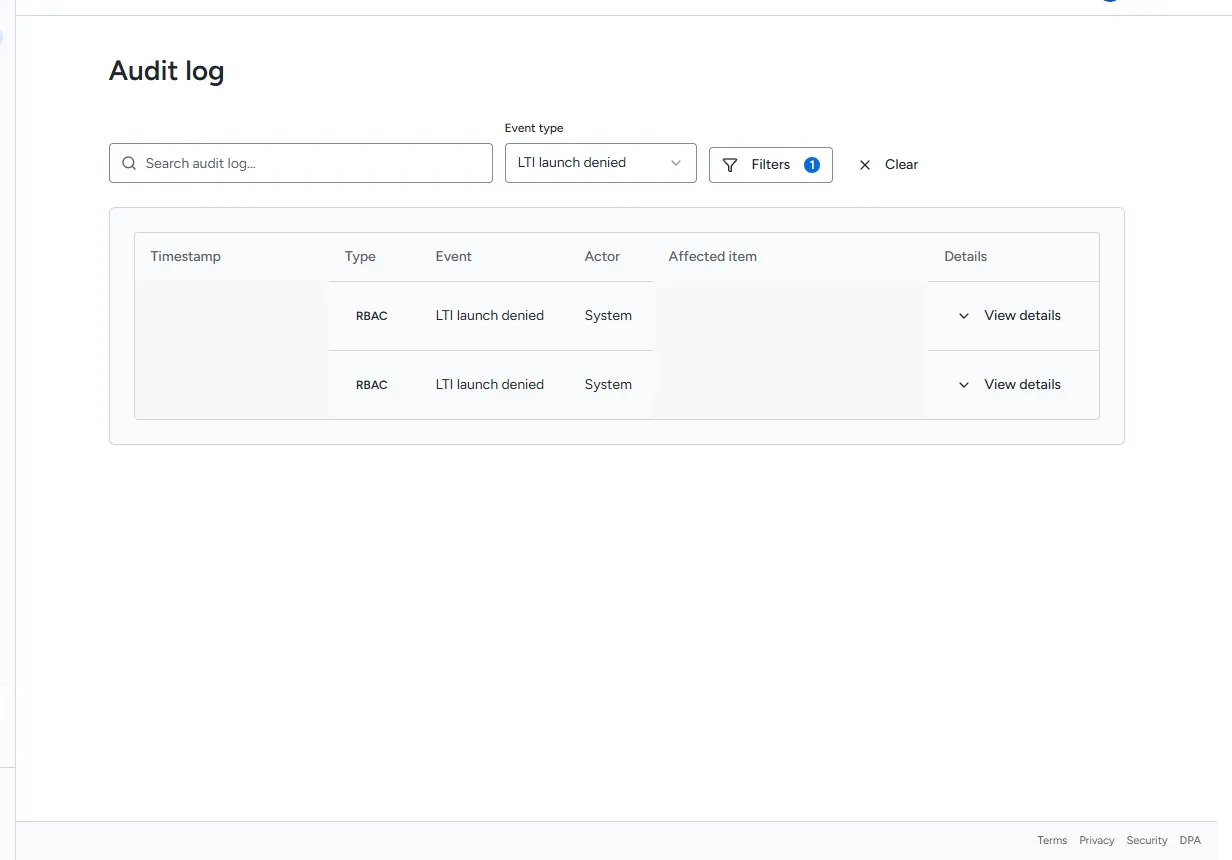
Section titled “Audit log”Open Settings > Audit log.
The audit log records what happened in your Organization: role and permission changes, people added, suspended or removed, LTI registration changes, refused Brightspace launches (LTI launch denied), report queries and more. Use search and the filters (person, report, dates, event type) to narrow it.
Delete the Organization
Section titled “Delete the Organization”Deleting the Organization permanently deletes all its data, datasets, reports and configuration. It cannot be undone.
- Open Settings > General and scroll to Danger zone.
- Select Delete account.
- Type your Organization name exactly as shown.
- Select Permanently delete account.
You cannot delete the Organization while a sync is running: wait for it to finish, or stop it on Data > Sync, then try again. Read what Rowseta deletes and keeps in What Rowseta stores and deletes.