
The report builder
The report builder is where you create and change reports. Open it with Reports > New report, or open a report you own and select Edit.
If you don’t see this menu or button, your role doesn’t include it. Ask someone who can edit roles (Owners and Admins by default).
The parts of the builder
Section titled “The parts of the builder”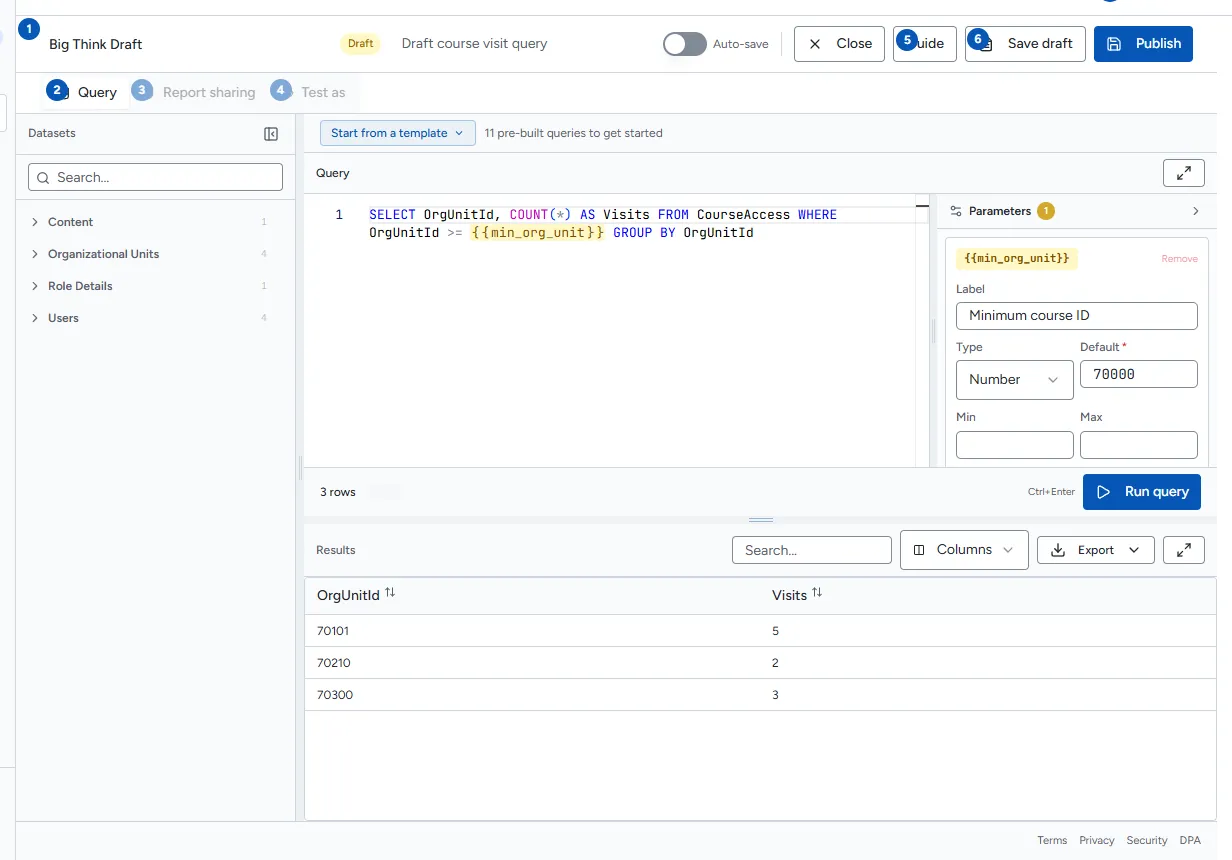
| Area | What it is for |
|---|---|
| Name and description | Select Untitled report to name the report; select Add description… to describe it. |
| Query tab | The template picker, the Datasets list, the SQL editor, the Parameters panel and the results. |
| Report sharing tab | Available on paid plans. See Share a report. |
| Guide | A short guided tour of these steps. |
| Save draft, Publish or Update | Save your work. |
Save a draft
Section titled “Save a draft”A draft appears only in its creator’s Reports list. Access to another person’s report follows the current role grants and report access rules.
- Select Save draft.
- After the first save, you can switch on Auto-save to save the draft as you work. The header shows Saved just now, Saving… or Save failed.
If you select Close with unsaved changes, Rowseta asks whether to Save draft, Discard or Keep editing.
Publish
Section titled “Publish”- Run the query successfully with Run query.
- Make sure the report has a name.
- Select Publish.
Publish stays disabled until the current query has run successfully. Every parameter needs a default value; if one is missing, Rowseta says Default value required for: and names it.
Update a published report
Section titled “Update a published report”- Open the report and select Edit.
- Make your change and run the query again.
- Select Update.
If your change removes or renames columns that insight widget metrics use, Rowseta warns you and names the metrics that may need updating. Check them in Insight widget metrics.
Copy a report
Section titled “Copy a report”On the Reports page, open the actions menu on a report and select Copy, or open the report and select Copy. The copy opens in the builder as “Copy of …” and is yours to edit. This is the only way to change a system report.
Delete a report
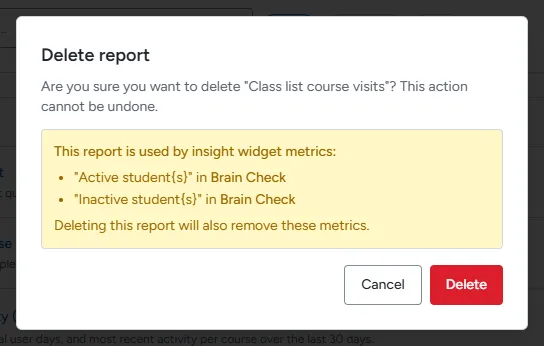
Section titled “Delete a report”- On the Reports page, open the actions menu on the report and select Delete.
- Confirm with Delete.
If insight widget metrics use the report, the confirmation lists them. Deleting the report also removes those metrics. Deleting cannot be undone.