

Build your first report
This walkthrough publishes the Course visits by course template. It needs only the Required datasets, gives one row per course, and works with insight widgets, so you can use it for your first widget straight away.
If you don’t see this menu or button, your role doesn’t include it. Ask someone who can edit roles (Owners and Admins by default).
1. Start a new report
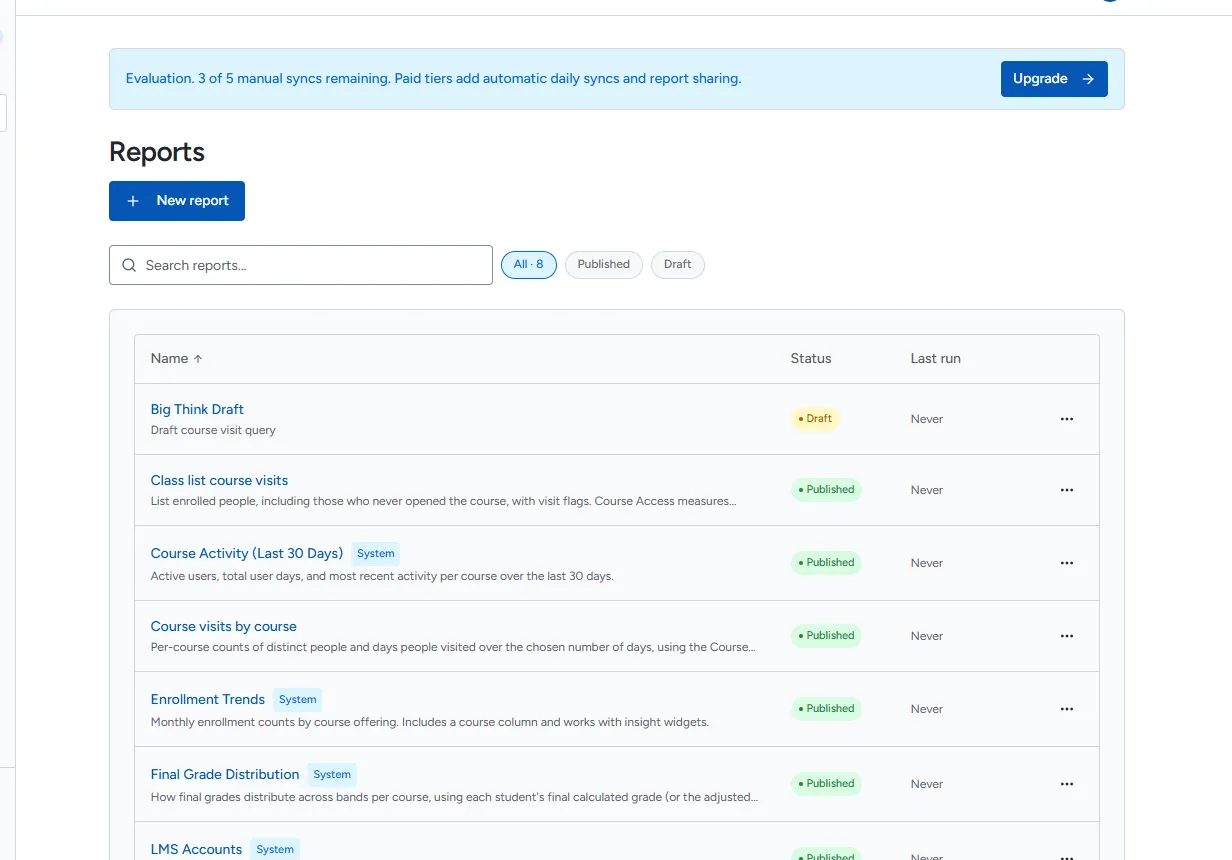
Section titled “1. Start a new report”- In the sidebar, select Reports.
- Select New report.
2. Choose the template
Section titled “2. Choose the template”-
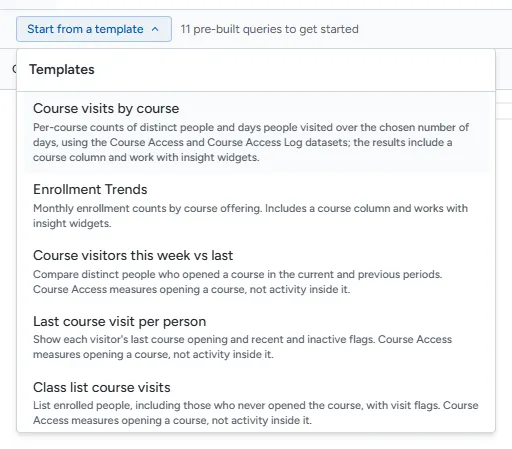
Select Start from a template above the editor.
-
Select Course visits by course.
A template that needs datasets you have not synced shows Missing datasets: and cannot be selected. See Templates.
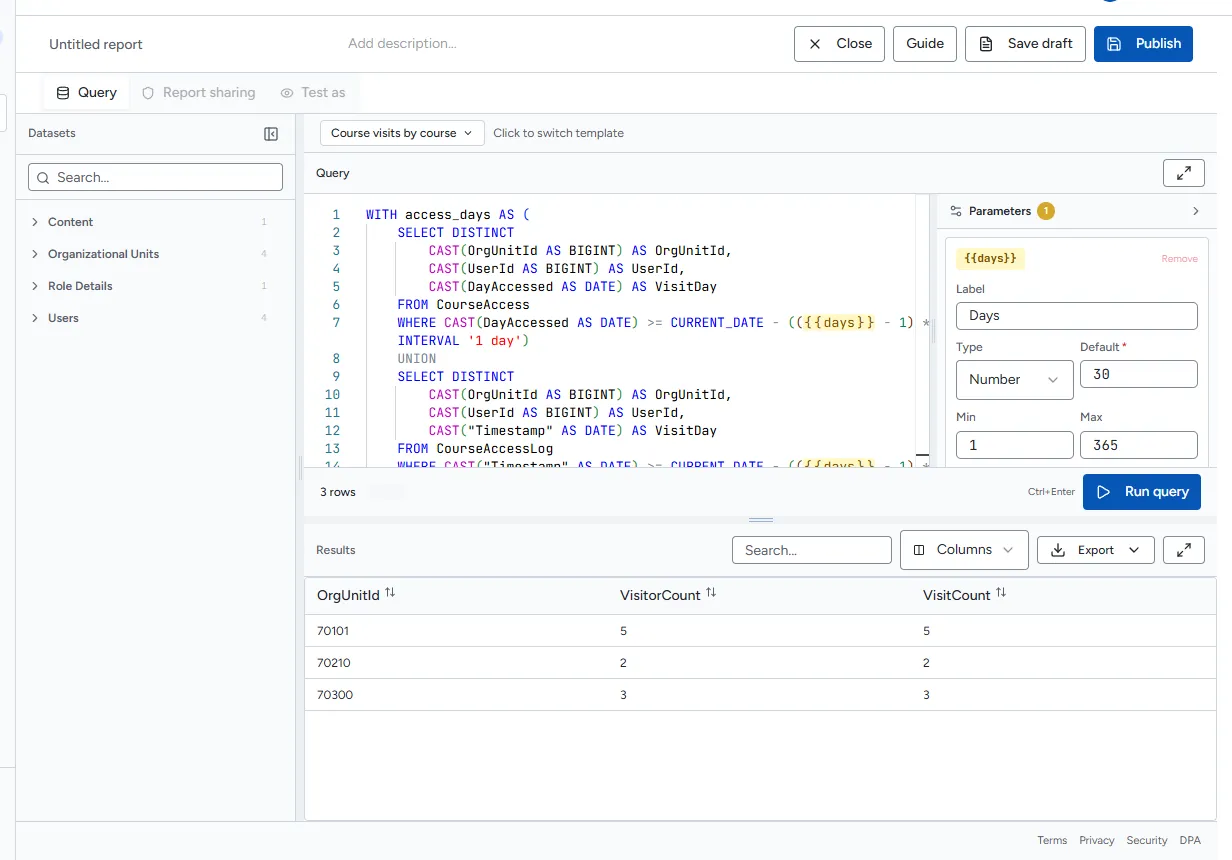
The template’s query appears in the editor, and its parameter (days) appears in the Parameters panel.
3. Run the query
Section titled “3. Run the query”Select Run query (or press Ctrl+Enter). The results appear under the editor.
You must run the query successfully before you can publish. If you change the query afterwards, run it again.
4. Name and publish
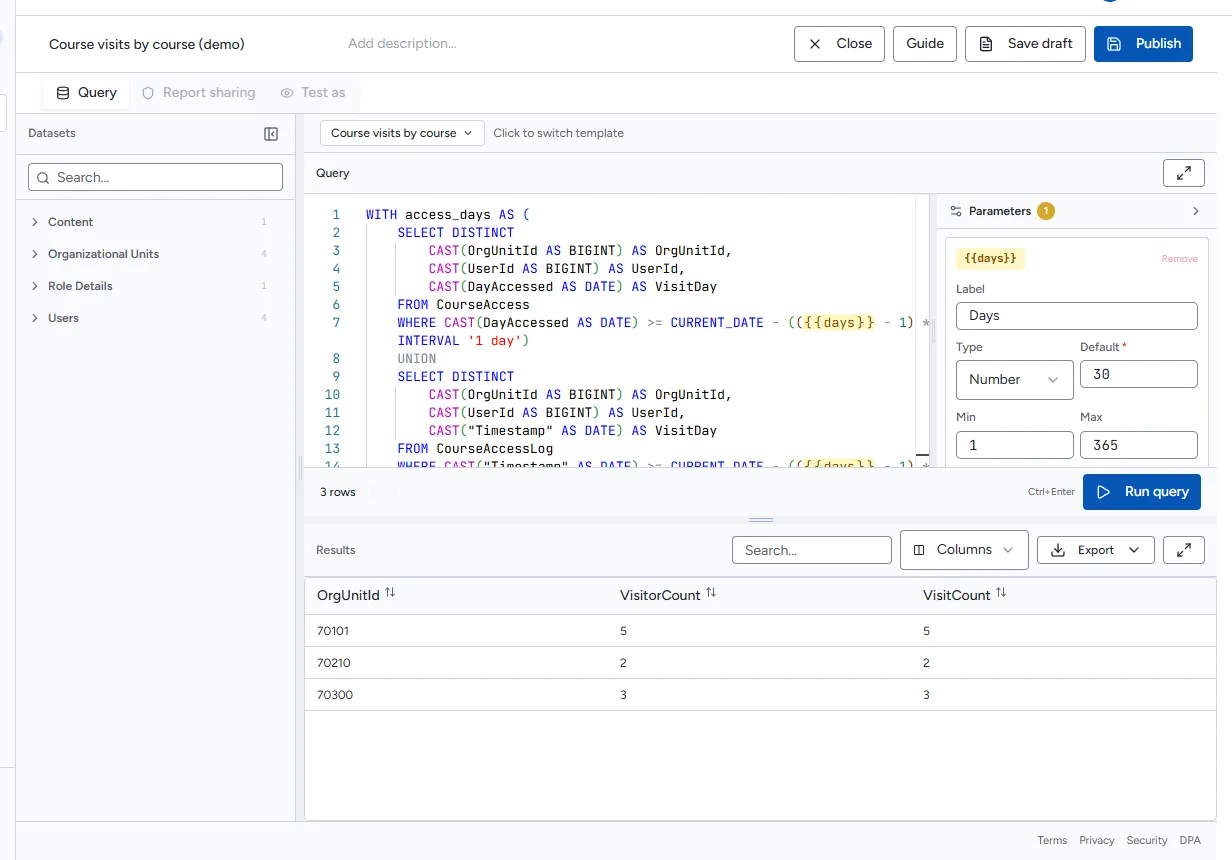
Section titled “4. Name and publish”- Select Untitled report at the top and type a name, for example “Course visits by course”.
- Optionally select Add description… and describe the report.
- Select Publish.
The report now appears on the Reports page for everyone who can view it.
Next steps
Section titled “Next steps”- Create an insight widget from this report.
- Learn the rest of the report builder.