Using a course widget
This page is for instructors as well as administrators. It describes the widget on a Brightspace course homepage.
Opening the widget
Section titled “Opening the widget”Open the course homepage in Brightspace. The widget signs you in to Rowseta for this course automatically; you do not need to sign in separately with a Rowseta password.
While the numbers load you see Starting metrics… and then Computing metrics, with a timer. After a sync, Rowseta prepares data for recently launched courses with active widgets. A first open can still take longer if the data is not ready; later opens are quicker.
Reading the numbers
Section titled “Reading the numbers”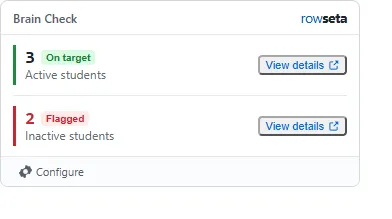
Each metric shows a number and a label. A coloured edge and a short word show its state:
| What you see | Meaning |
|---|---|
| Red edge, Flagged | The number crossed the alert threshold. |
| Green edge, On target | The metric has an alert and the number is within it. |
| No colour, no word | The metric has no alert. |
| Timeout | The number took too long to calculate. Reload the page to try again. |
| Error | The number could not be calculated. Ask your Rowseta administrator to check the metric. |
| You next to the number | The number counts only your own records. |
The widget never shows names, only numbers.
View details
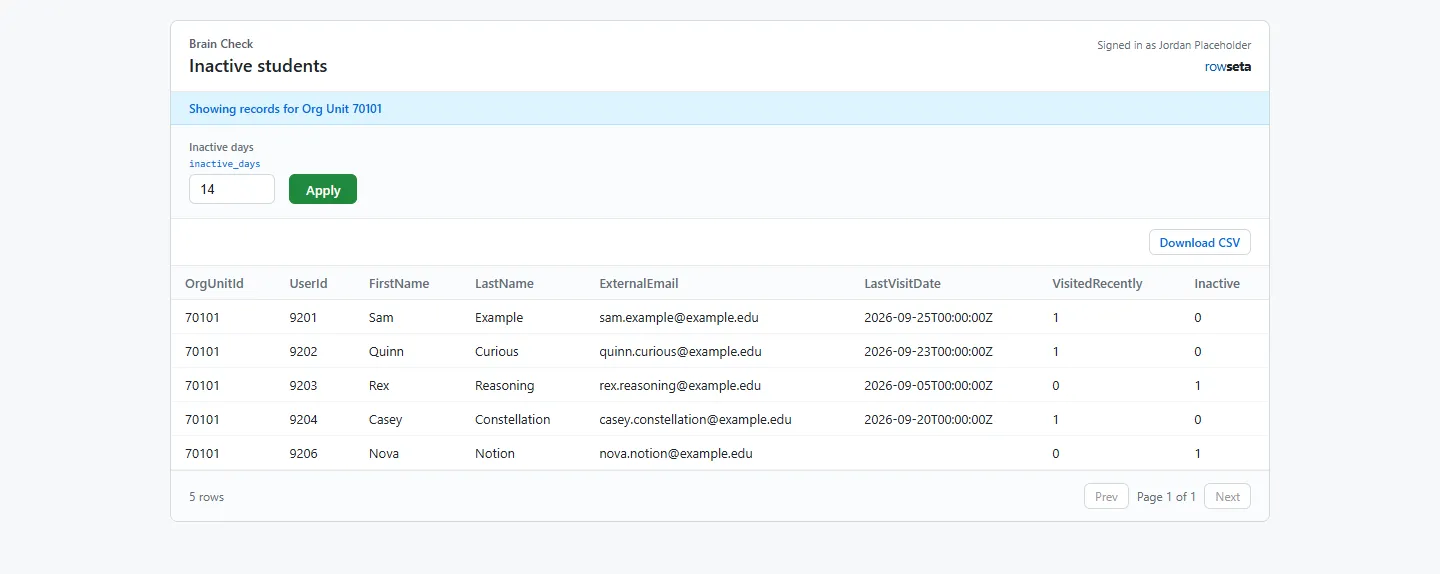
Section titled “View details”Select View details next to a number to open the rows behind it in a new tab, for example the list of inactive students in your course.
On the details page:
- The heading says whose records you see, for example Showing records for THINK 101: Thonking (Demo).
- If the metric has parameters, they are listed at the top. Change any that are not locked and select Apply.
- Use Prev and Next to page through rows.
- Select Download CSV above the table to download the rows when that button appears.
If you don’t see this menu or button, your role doesn’t include it. Ask someone who can edit roles (Owners and Admins by default).
To learn when names appear on widget details, see Names on widget details.
The details page stays open for a limited time. If it says Open this widget again from Brightspace, go back to the course homepage and select View details again.
Configure
Section titled “Configure”Configure at the bottom of the widget adjusts settings for the signed course. See the fixed Configure rule for who can open it.
To change the widget for your course:
- Select Configure.
- Change parameter values. A parameter marked as required must have a value.
- Under Flag rules, change a metric’s alert: choose above, at or above, below, at or below, equal to or not equal to and enter a value, or choose No flag. An alert your administrator locked reads (locked) and cannot be changed. Reset returns a rule to the Organization’s setting.
- Select Save, or Cancel to close without saving.
See the fixed Configure rule for its course scope and launch limits. Other courses keep the Organization’s settings.
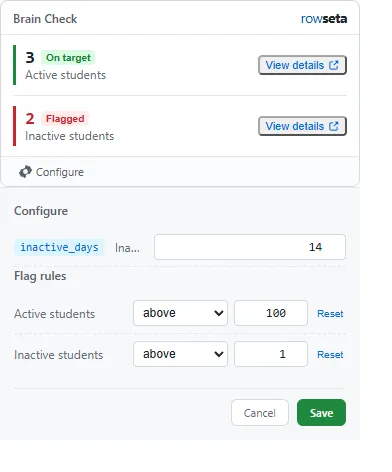
If the widget shows Configure this insight widget with Configure now, a required value is missing for this course. Enter it and save; the numbers then appear.
What students see
Section titled “What students see”Students also see their own numbers is the widget’s student viewing switch. See the fixed launch rules for who can open the widget and what they can see. The widget may show This widget is not available to students.
Messages you might see
Section titled “Messages you might see”| Message | What to do |
|---|---|
| Unable to load this widget. | Reload the course page. If it persists, tell your Rowseta administrator. |
| You don’t have access to this. | Check the fixed launch rules and the widget link. Tell your administrator. |
| This Organization is using all of its Evaluation course slots. … | The Organization is at its Evaluation course limit. Release an unused course from the widget editor. |
| Brightspace access unavailable | Read the sentence under it. See Troubleshooting Brightspace launches. |