

Choose datasets
After you save the Brightspace connection, Rowseta scans Brightspace for the datasets your institution can use. Which datasets appear depends on your institution’s Brightspace Data Sets subscription and on what Brightspace has turned on for you.
If you don’t see this menu or button, your role doesn’t include it. Ask someone who can edit roles (Owners and Admins by default).
1. Wait for the scan
Section titled “1. Wait for the scan”Home shows Scanning Brightspace for available datasets… with a count such as “Checking 12 of 150 datasets”. This usually takes under a minute.
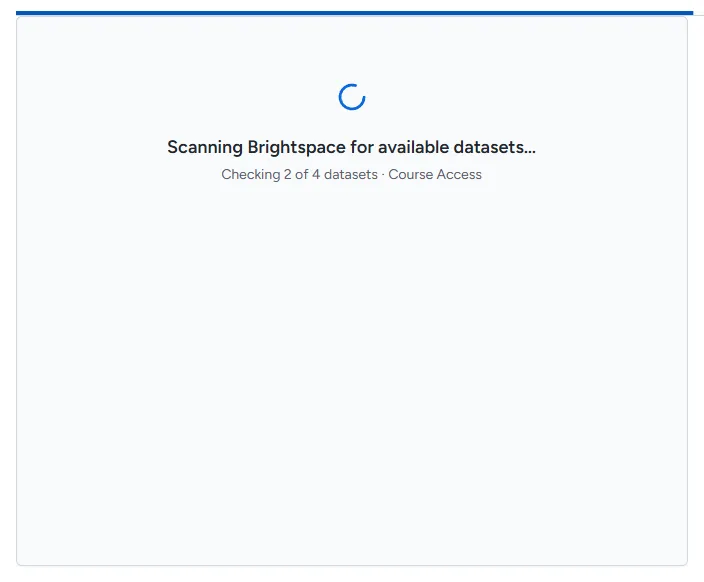
If the scan finds nothing, you see No datasets found. The usual cause is a service user without the Can Access Brightspace Data Sets permission. Select Update connection settings to fix the connection, or Retry scan.
2. Choose a preset
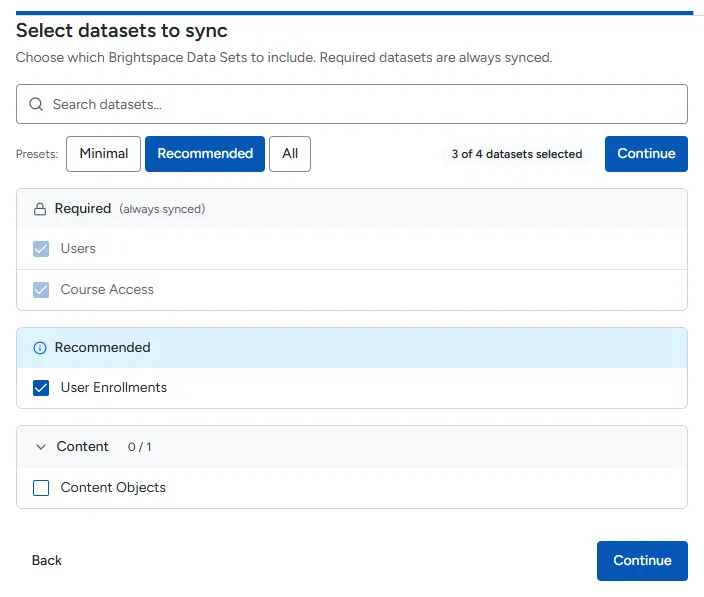
Section titled “2. Choose a preset”When the scan finishes, Select datasets to sync lists every dataset in three groups:
| Group | What it means |
|---|---|
| Required (always synced) | Users, Course Access and Course Access Log. Rowseta needs them to connect people with data and count LMS Accounts. You cannot turn them off. |
| Recommended | Role Details, User Enrollments and the Organizational Unit datasets. They let Rowseta limit report data to a person’s courses. |
| Other groups by category | Everything else your institution can sync, such as Grades or Quizzes. |
All datasets start selected. Use the presets to change that quickly:
- Minimal: Required datasets only.
- Recommended: Required plus Recommended. This covers introductory reports and widgets. The Student Engagement Signals template also needs Content Objects, Content User Progress, Grade Objects, Grade Results, and Gradebook Settings.
- All: every dataset.
You can also tick or untick datasets one by one, or search with Search datasets….
3. Continue
Section titled “3. Continue”Select Continue. The next screen summarizes your choice. Go on to Run your first sync.
Related
Section titled “Related”- Dataset guide: what the datasets Rowseta uses contain
- Manage datasets